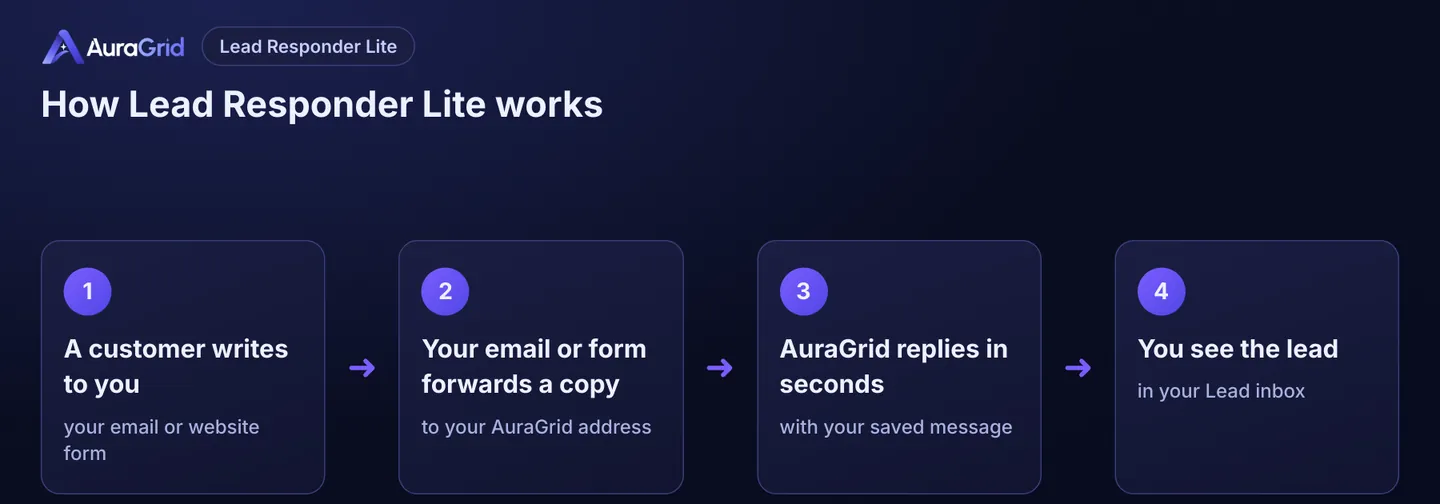
Lead Responder Lite answers every new enquiry in seconds, in your words. You connect it once: your email or website form sends a copy of each enquiry to your private AuraGrid address, and we reply for you.
Price: $29/month, or $243/year (save 30%). 7-day free trial; card required, $0 today, first charge on day 8. Cancel any time from Billing.
Illustration, your screen may look slightly different
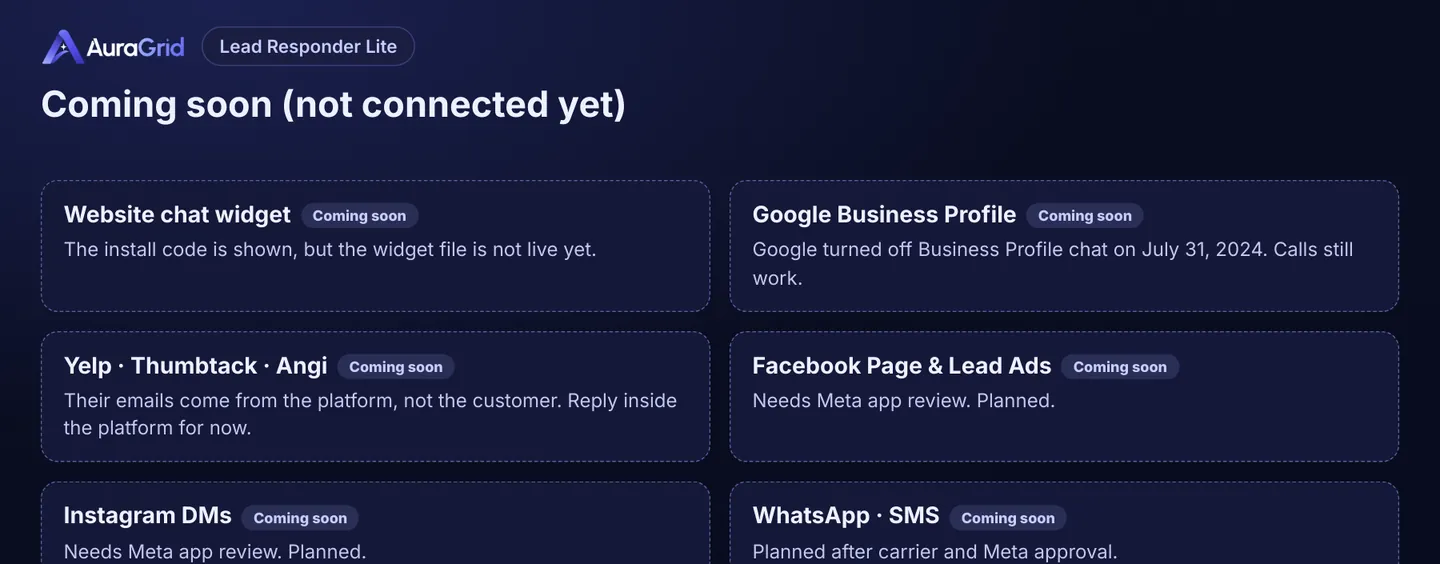
Which channels can I connect?
Channel
Status
Email you already get (Gmail, Outlook / Microsoft 365, website email at your host)
Available
Website contact forms (WordPress Contact Form 7, WPForms, Wix, Squarespace, Webflow, any form that emails you)
Available
Website chat widget
Coming soon
Google Business Profile
Coming soon (Google ended Business Profile chat on July 31, 2024)
Yelp, Thumbtack, Angi
Coming soon
Facebook Page, Lead Ads, Instagram
Coming soon
WhatsApp, SMS
Coming soon
Illustration, your screen may look slightly different
Part 1: Your AuraGrid dashboard (5 minutes)
Sign in. Go to auragridlabs.com › Sign in. Enter your email, choose Sign in with password (or Email me a sign-in link).
Real screen · AuraGrid preview
Set up your business. Dashboard › Setup › step 1: business name, phone, time zone, booking link, services. Click Continue.
Real screen · AuraGrid preview
Copy your forwarding address. Dashboard › Channels › Forwarding email › Copy. It looks like and is only yours.
Real screen · AuraGrid preview
Choose your reply. Setup › step 3 (or Reply): pick Polite greeting, Ask for details, Business hours, Quote request, or Write my own. Watch the Live preview. Click Save; saving turns the reply on.
Real screen · AuraGrid preview
Send yourself a test. Setup › step 4 › Send me a test. It goes only to your login email.
Real screen · AuraGrid preview
Connect a channel (Part 2), then email yourself from another address or fill in your own form.
Real screen · AuraGrid preview
Check it arrived. Channels shows "A lead has been received".
Real screen · AuraGrid preview
See your leads. Dashboard › Leads: name, message, status; search; Export CSV. Call the customer from here.
Real screen · AuraGrid preview
Part 2: Connect your channels (pick the ones you use)
2A. Gmail (personal or Google Workspace)
Google Workspace: if "Forwarding" is missing, your admin must allow automatic forwarding (Admin console, Gmail › End user access › Automatic forwarding).
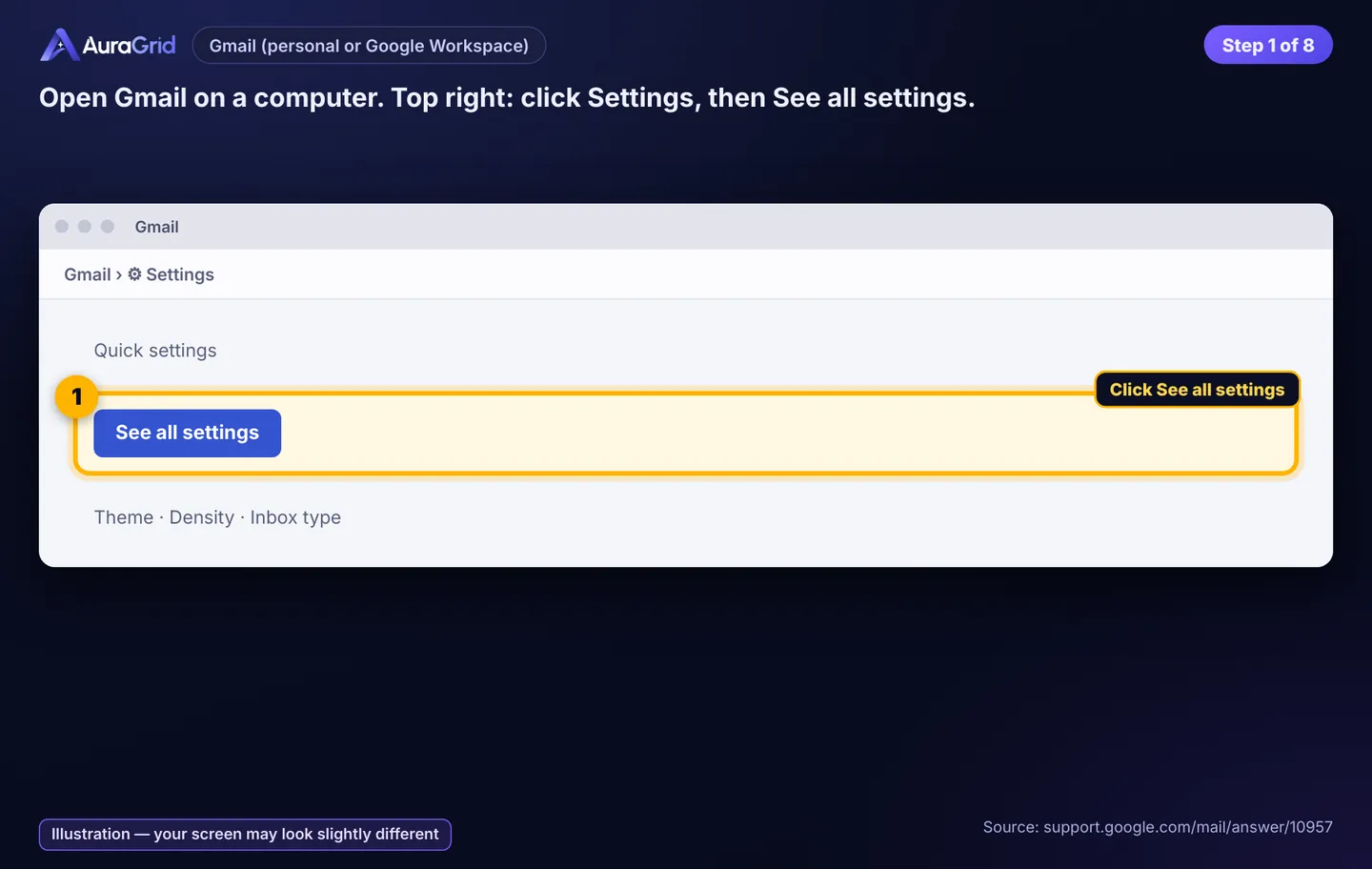
Open Gmail on a computer. Top right: Settings › See all settings.
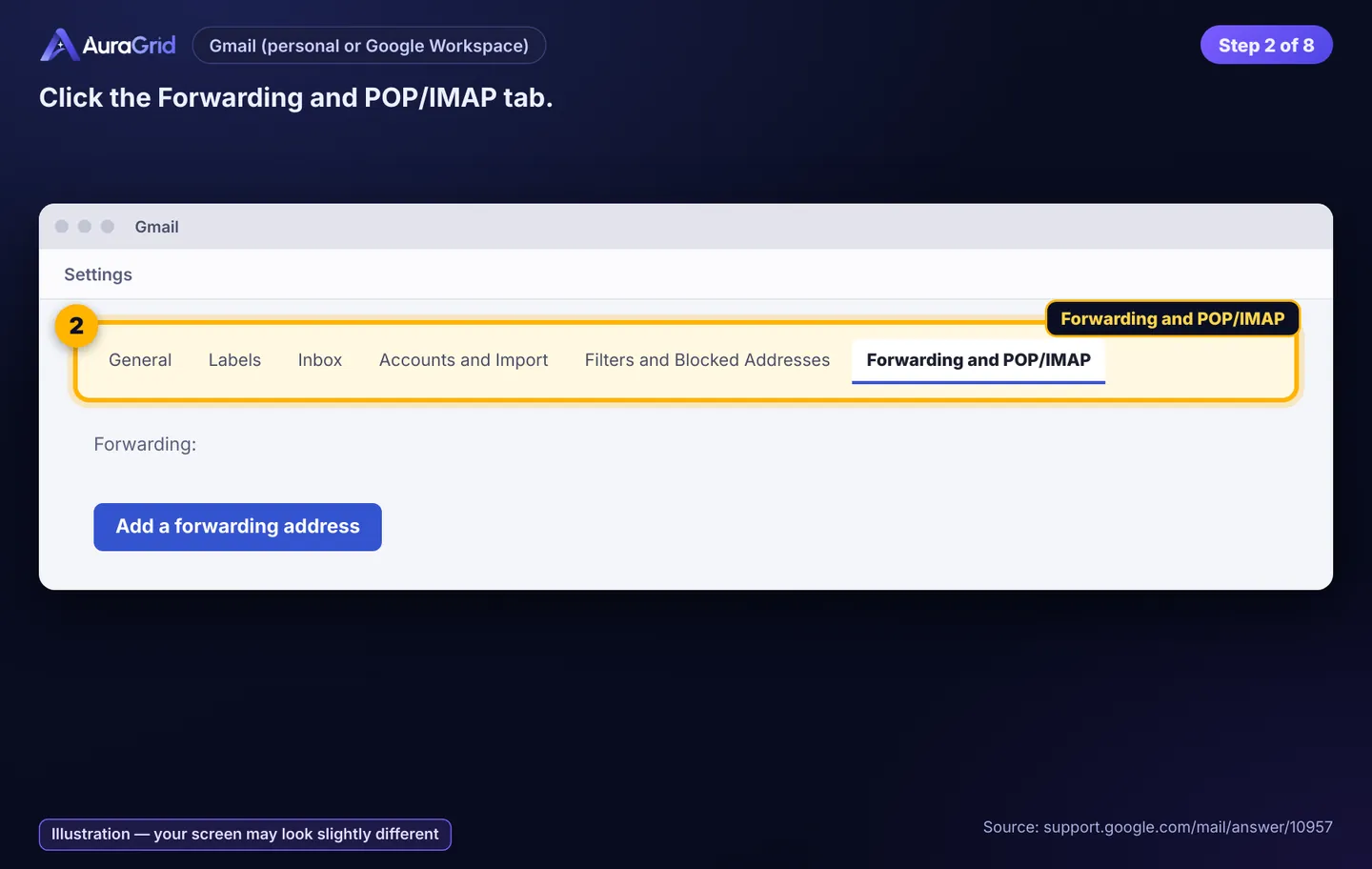
Click the Forwarding and POP/IMAP tab.
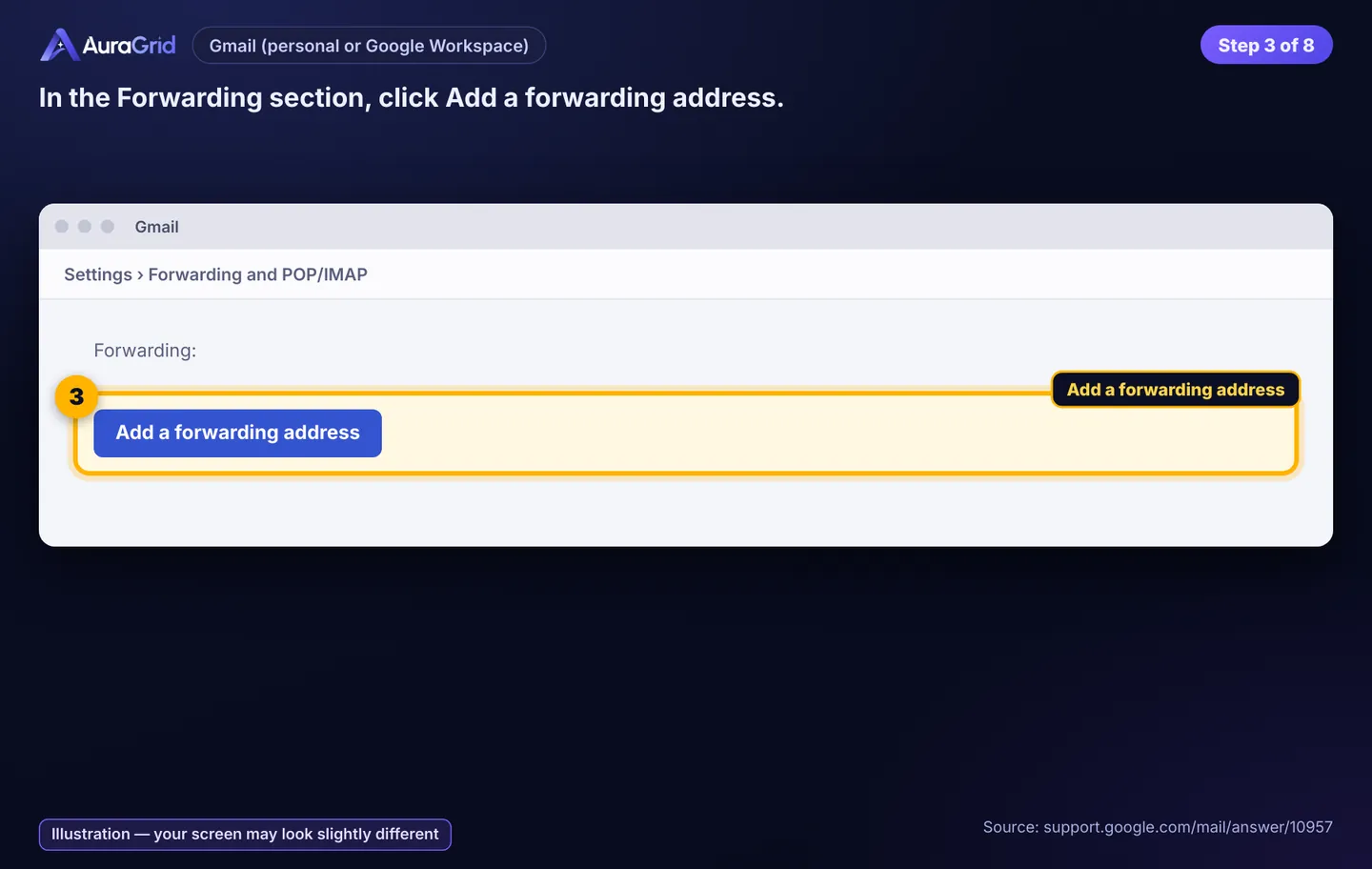
In Forwarding, click Add a forwarding address.
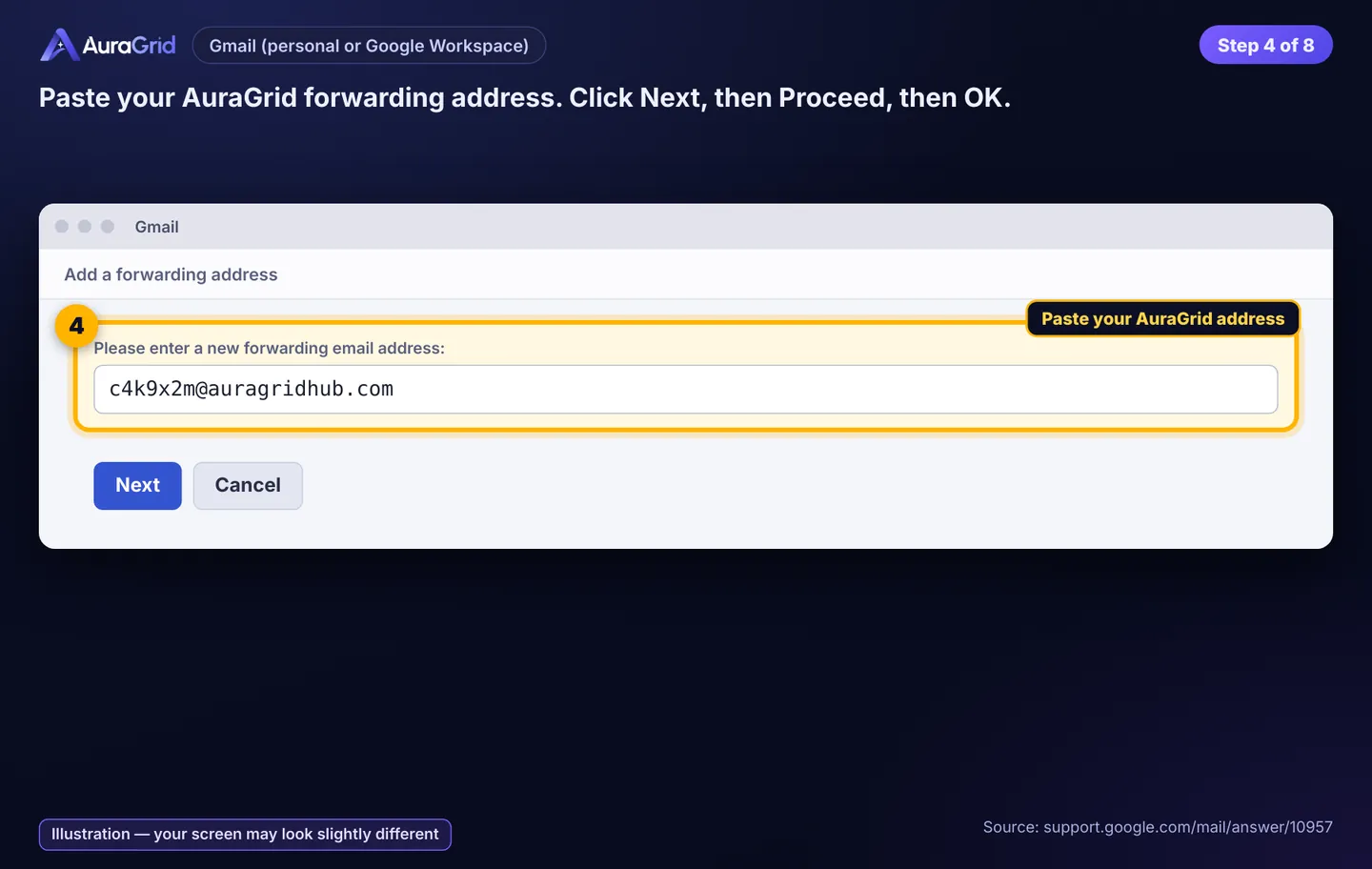
Paste your AuraGrid address. Click Next › Proceed › OK.
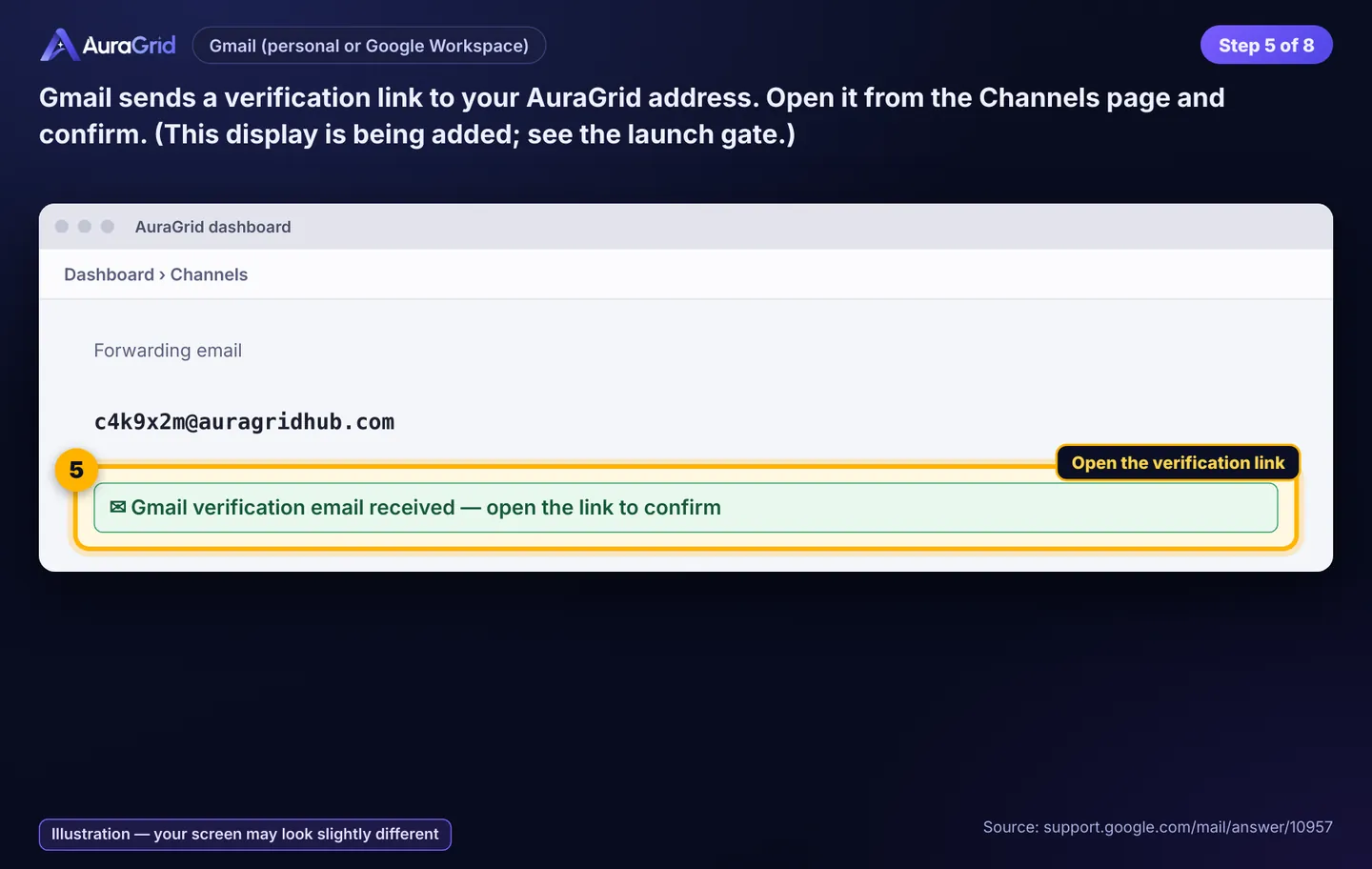
Gmail sends a verification link to your AuraGrid address. Open it from Dashboard › Channels and confirm.
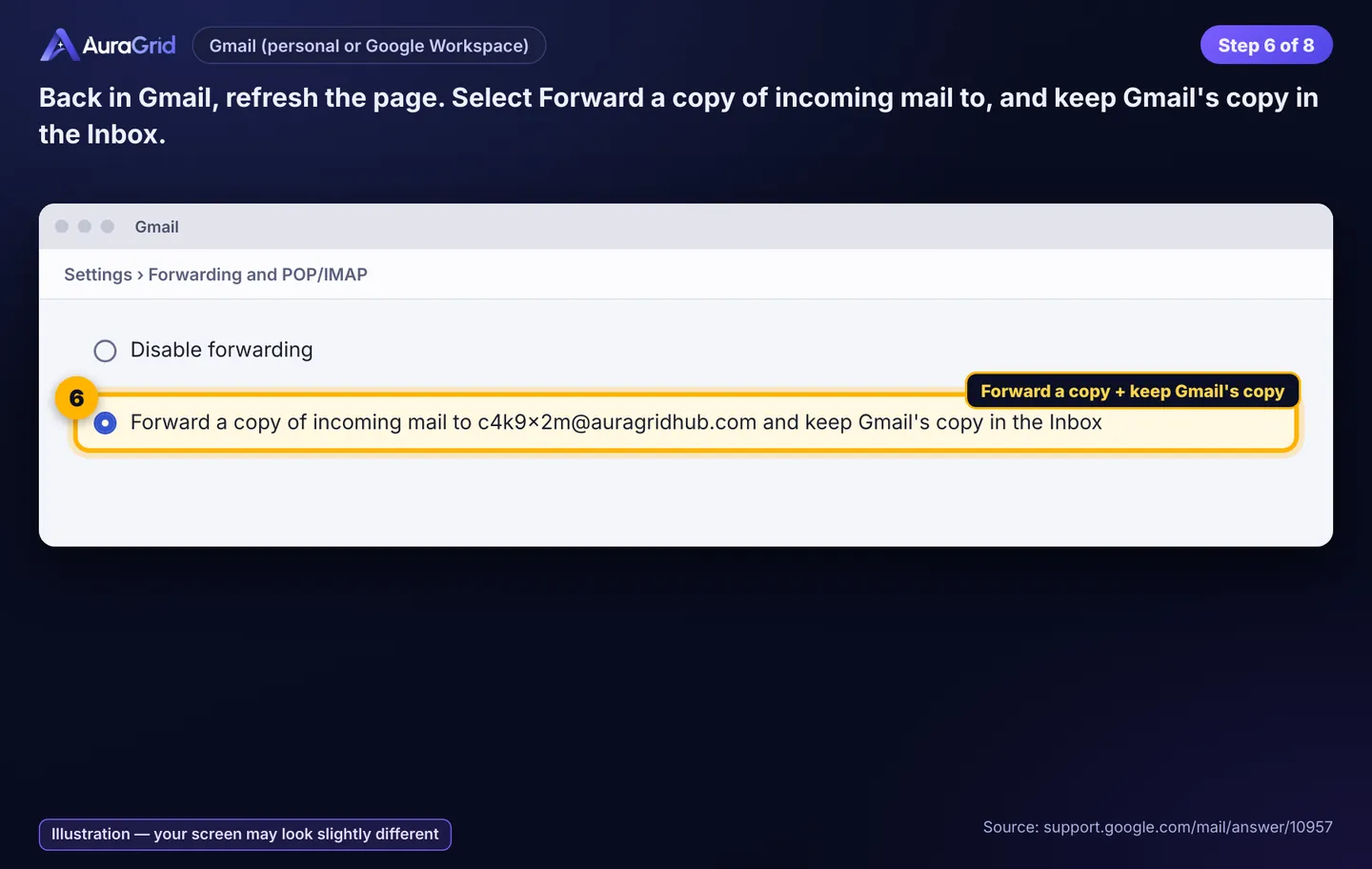
Back in Gmail, refresh. Select Forward a copy of incoming mail to your AuraGrid address, and choose keep Gmail's copy in the Inbox.
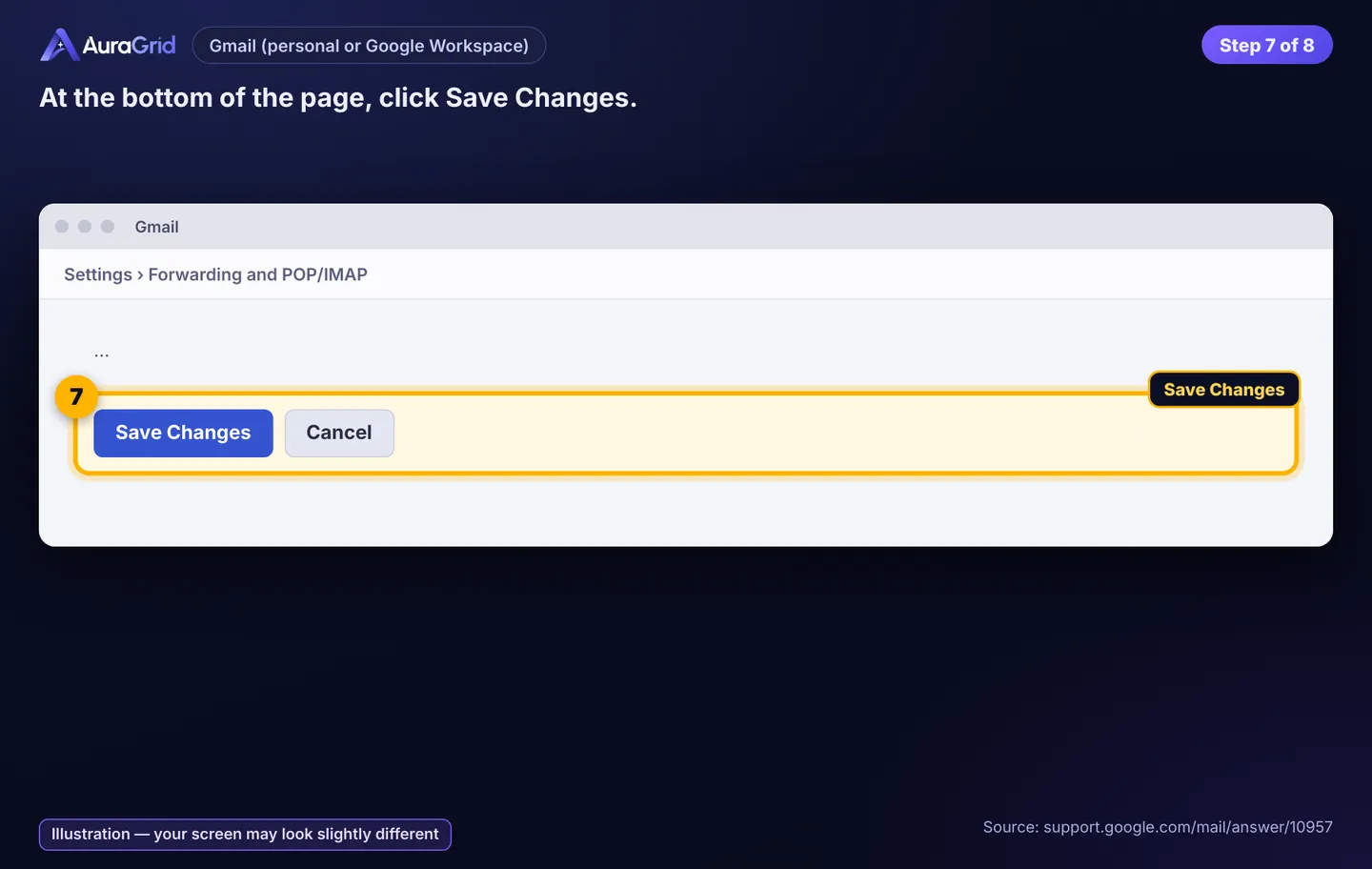
Click Save Changes at the bottom.
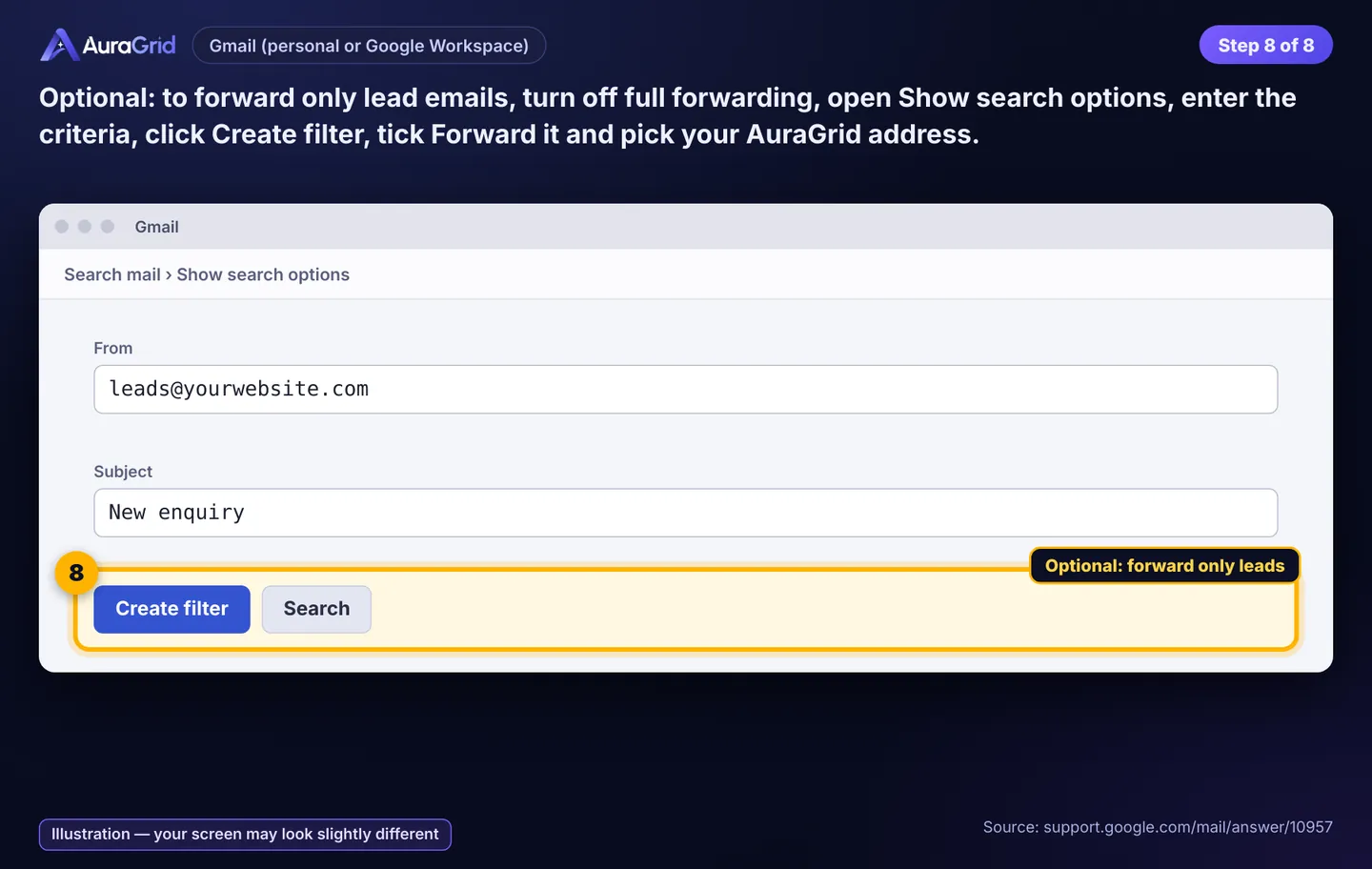
Optional, only lead emails: keep full forwarding off; use Show search options › criteria › Create filter › Forward it › your AuraGrid address.
Illustration, your screen may look slightly differentIllustration, your screen may look slightly differentIllustration, your screen may look slightly differentIllustration, your screen may look slightly differentIllustration, your screen may look slightly differentIllustration, your screen may look slightly differentIllustration, your screen may look slightly differentIllustration, your screen may look slightly different
2B. Outlook.com, Outlook on the web, Microsoft 365
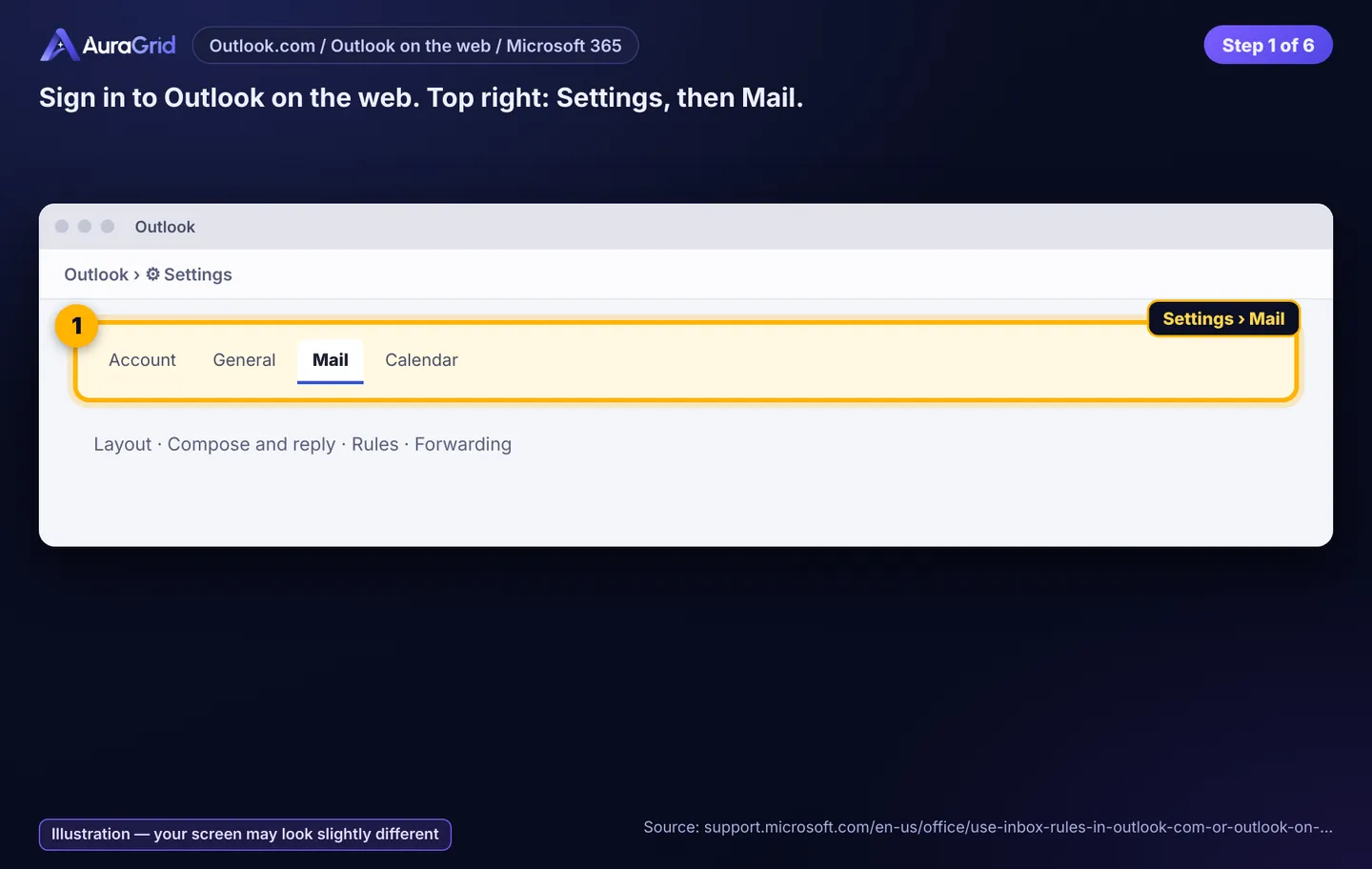
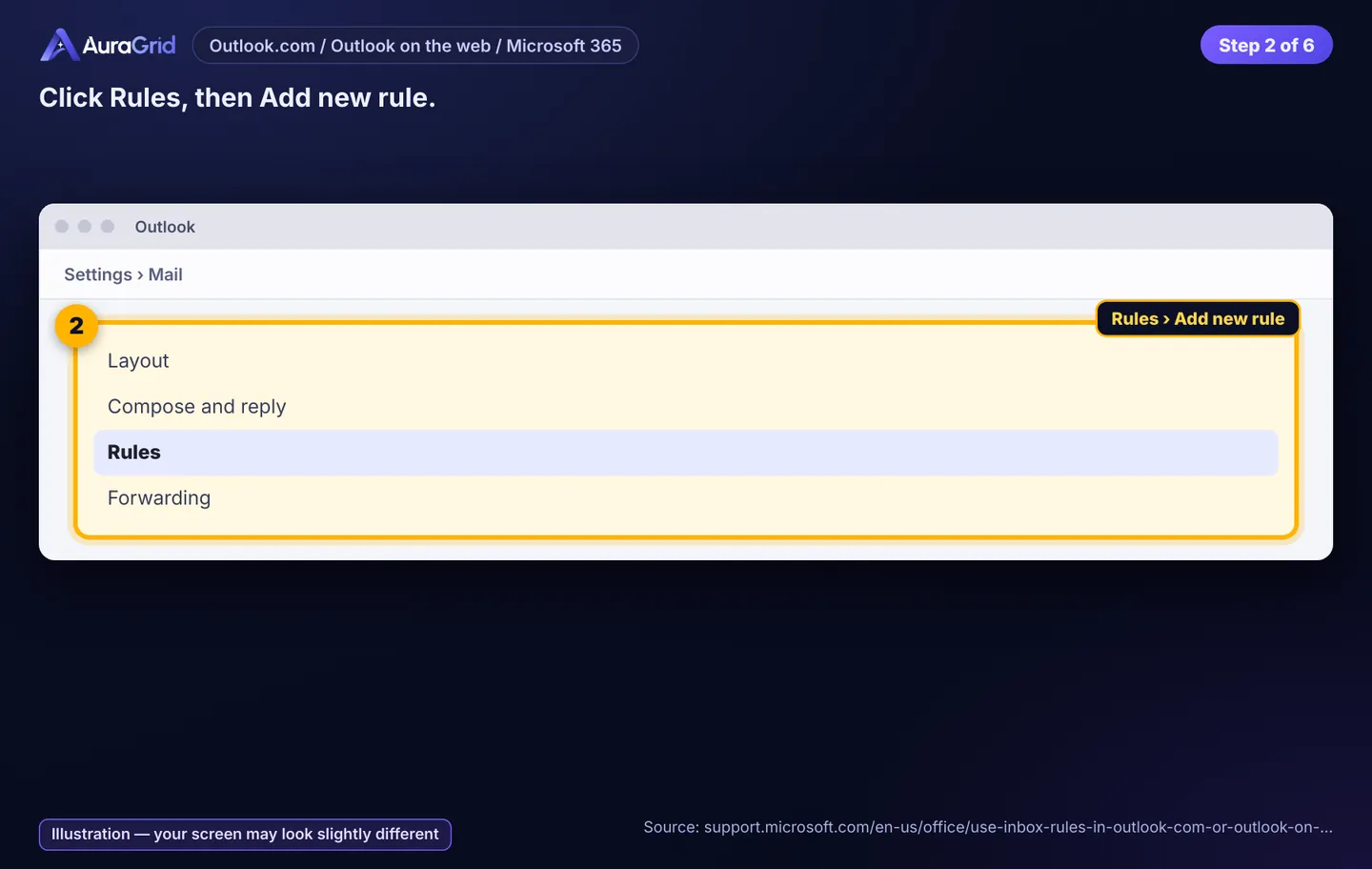
Sign in to Outlook on the web. Settings › Mail.
Rules › Add new rule.
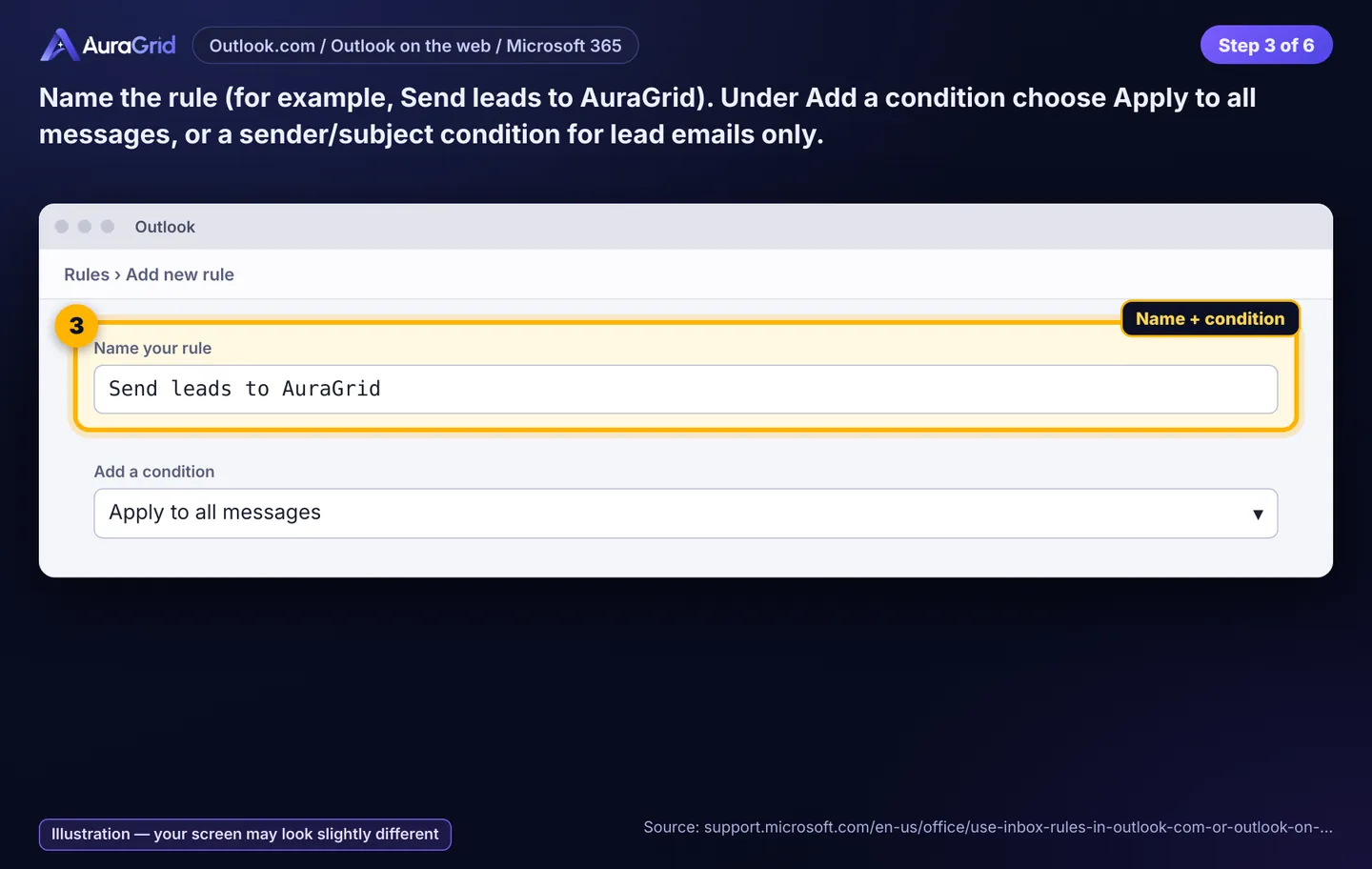
Name it "Send leads to AuraGrid". Add a condition: Apply to all messages (or From / Subject includes for lead emails only).
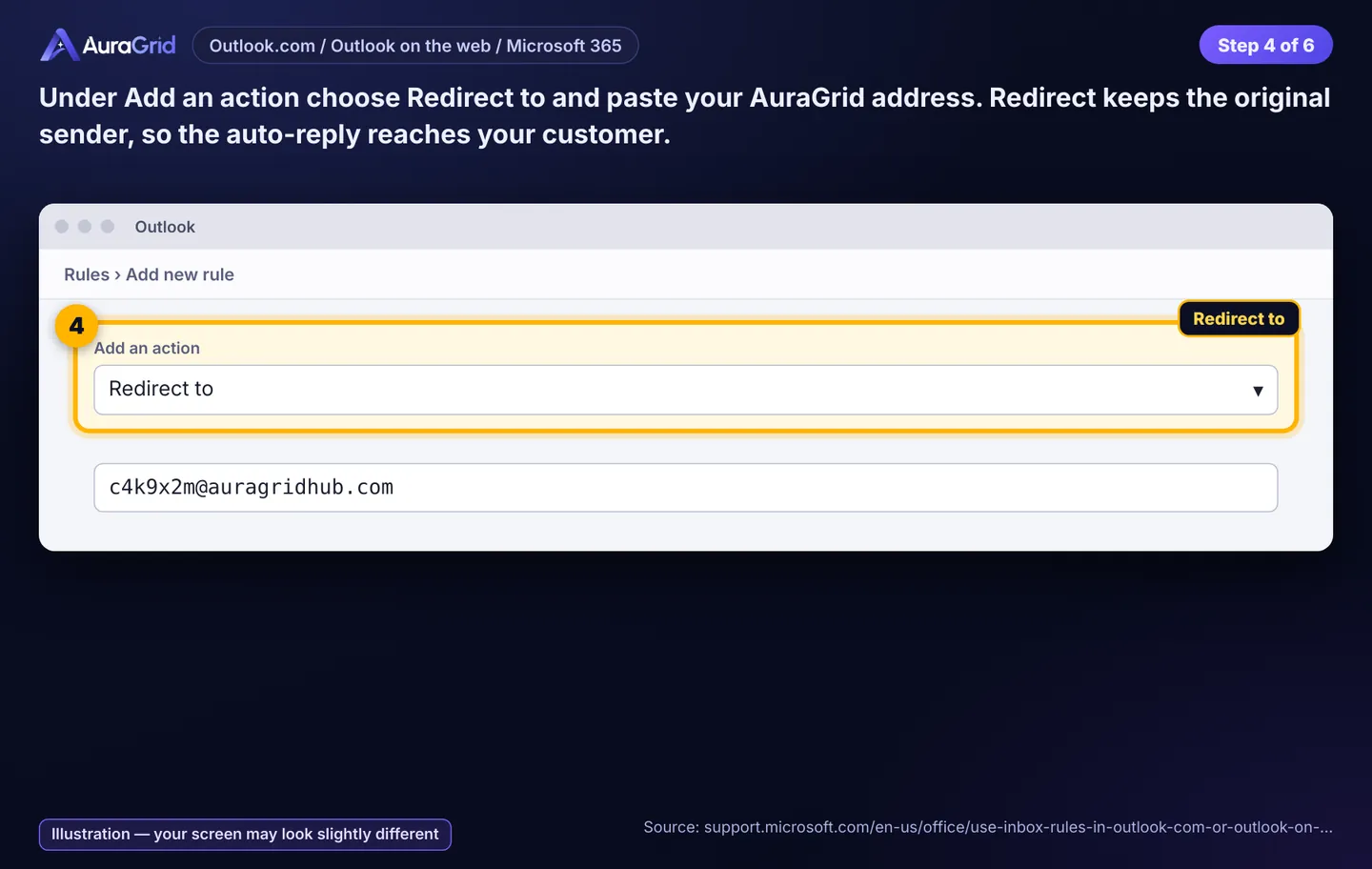
Add an action: Redirect to › paste your AuraGrid address. Redirect keeps the original sender, so our reply reaches your customer.
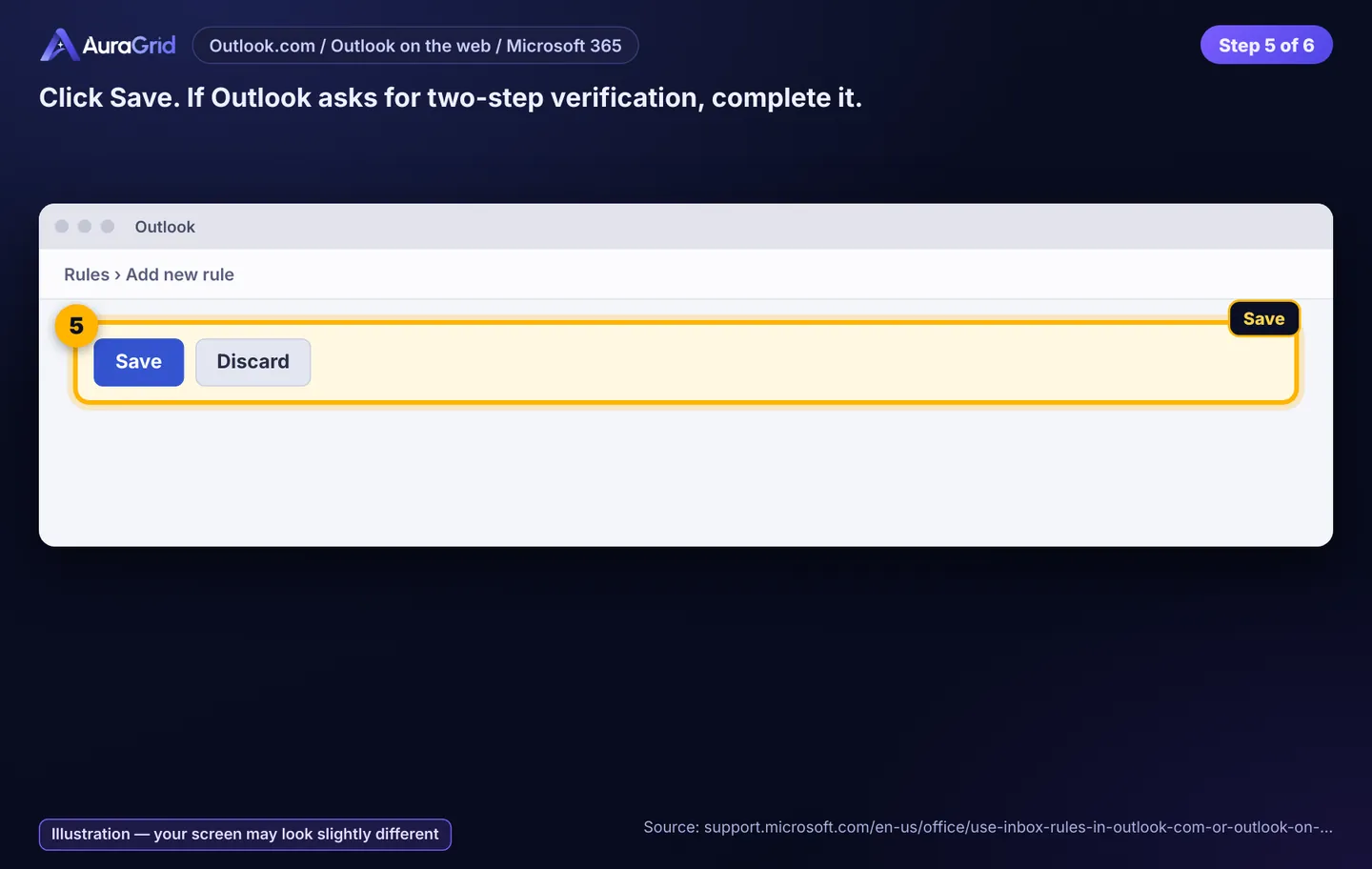
Save. Complete two-step verification if Outlook asks.
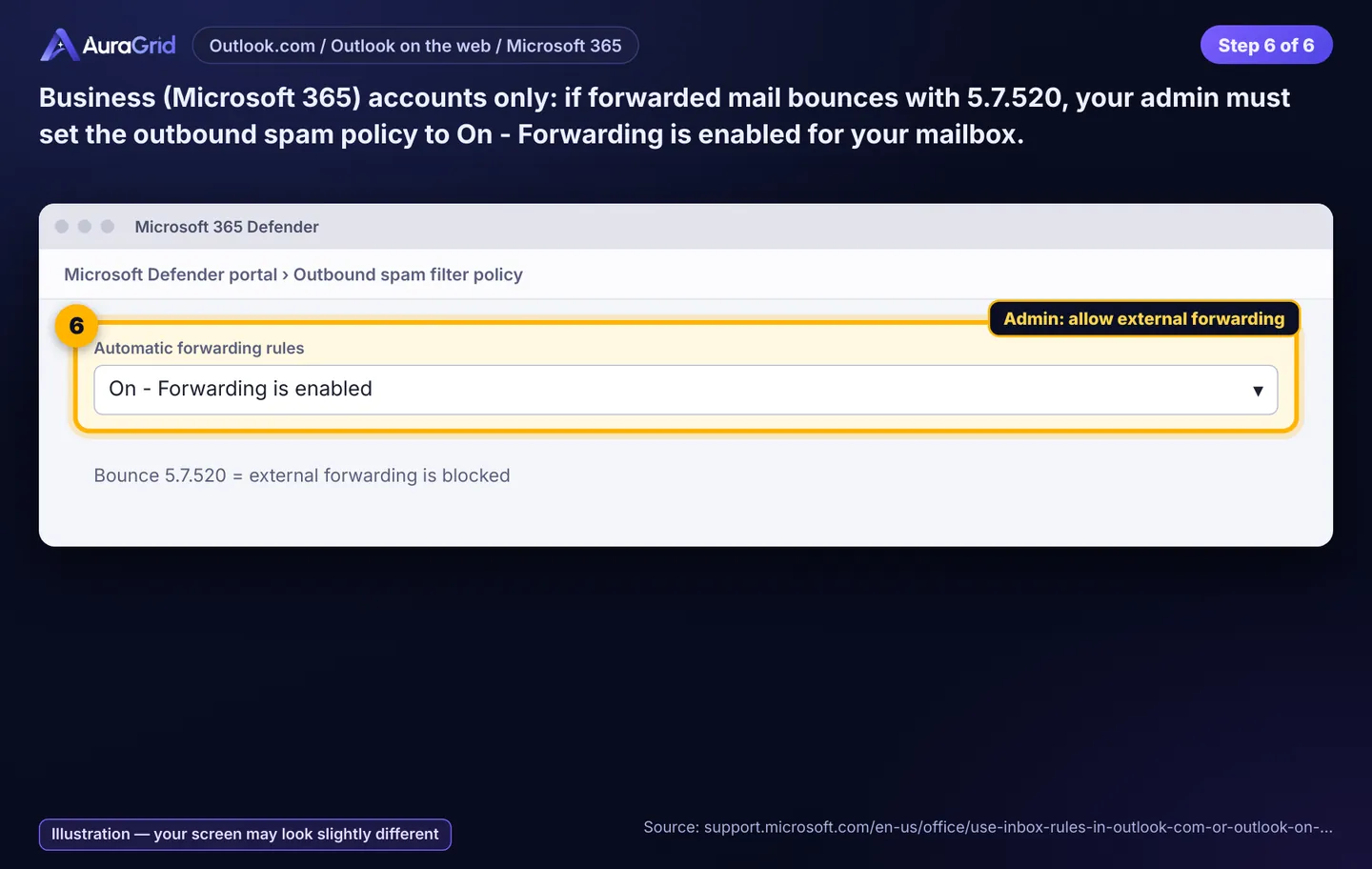
Business accounts: if mail bounces with 5.7.520, ask your Microsoft 365 admin to set the outbound spam policy's automatic forwarding to On - Forwarding is enabled for your mailbox.
Illustration, your screen may look slightly differentIllustration, your screen may look slightly differentIllustration, your screen may look slightly differentIllustration, your screen may look slightly differentIllustration, your screen may look slightly differentIllustration, your screen may look slightly different
2C. Website email at your host (cPanel)
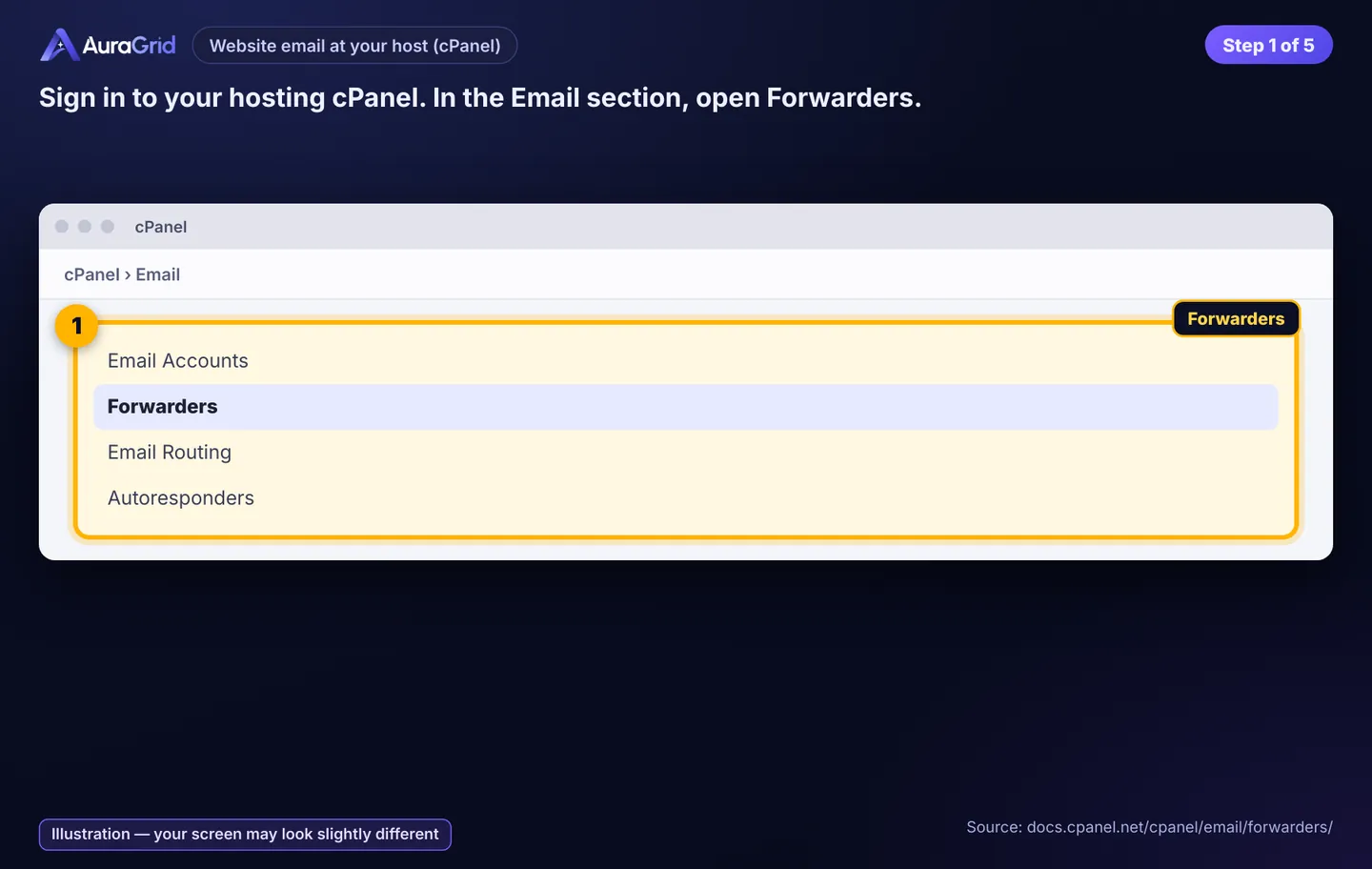
Sign in to cPanel. Email › Forwarders.
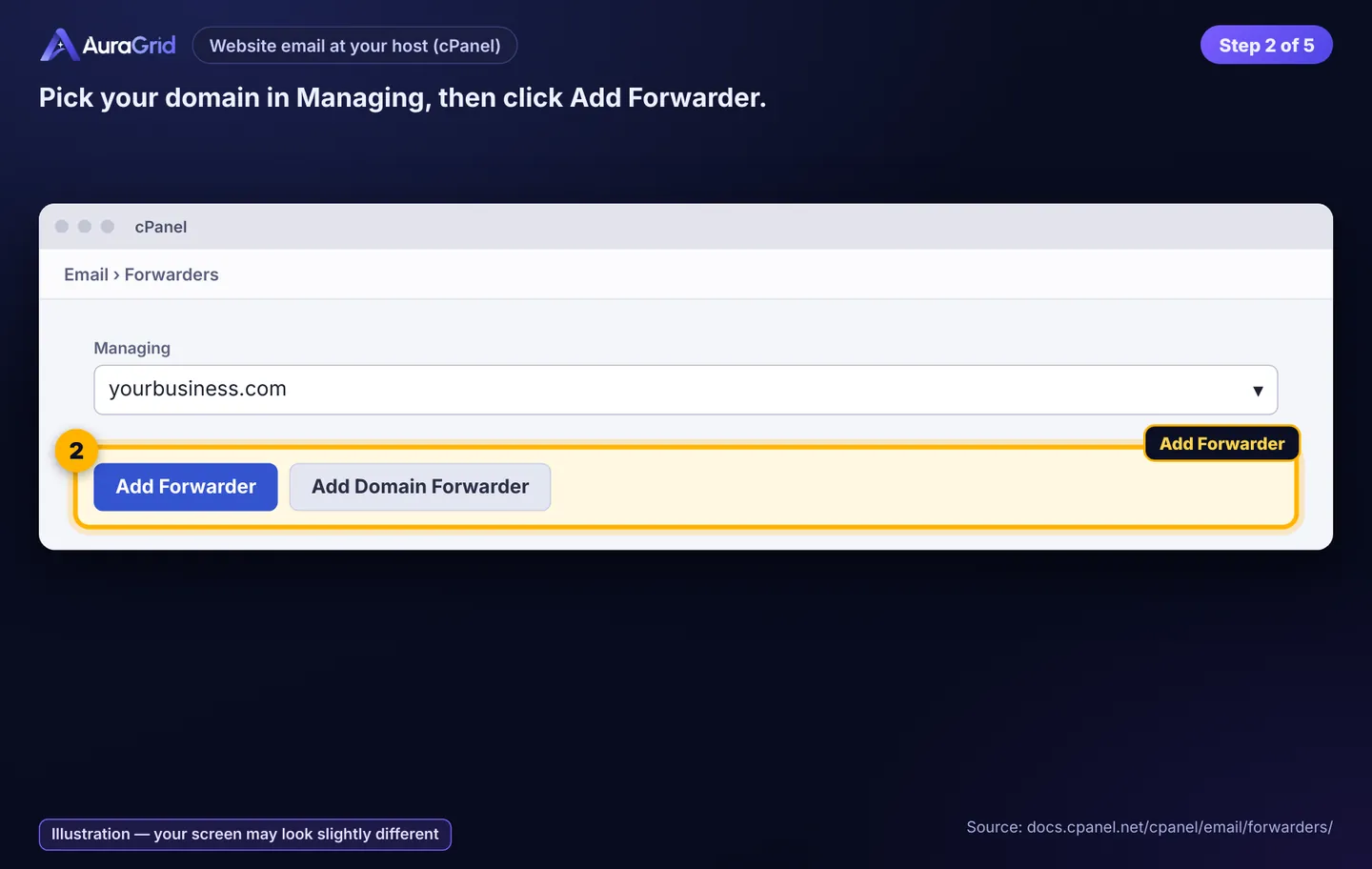
Pick your domain in Managing, click Add Forwarder.
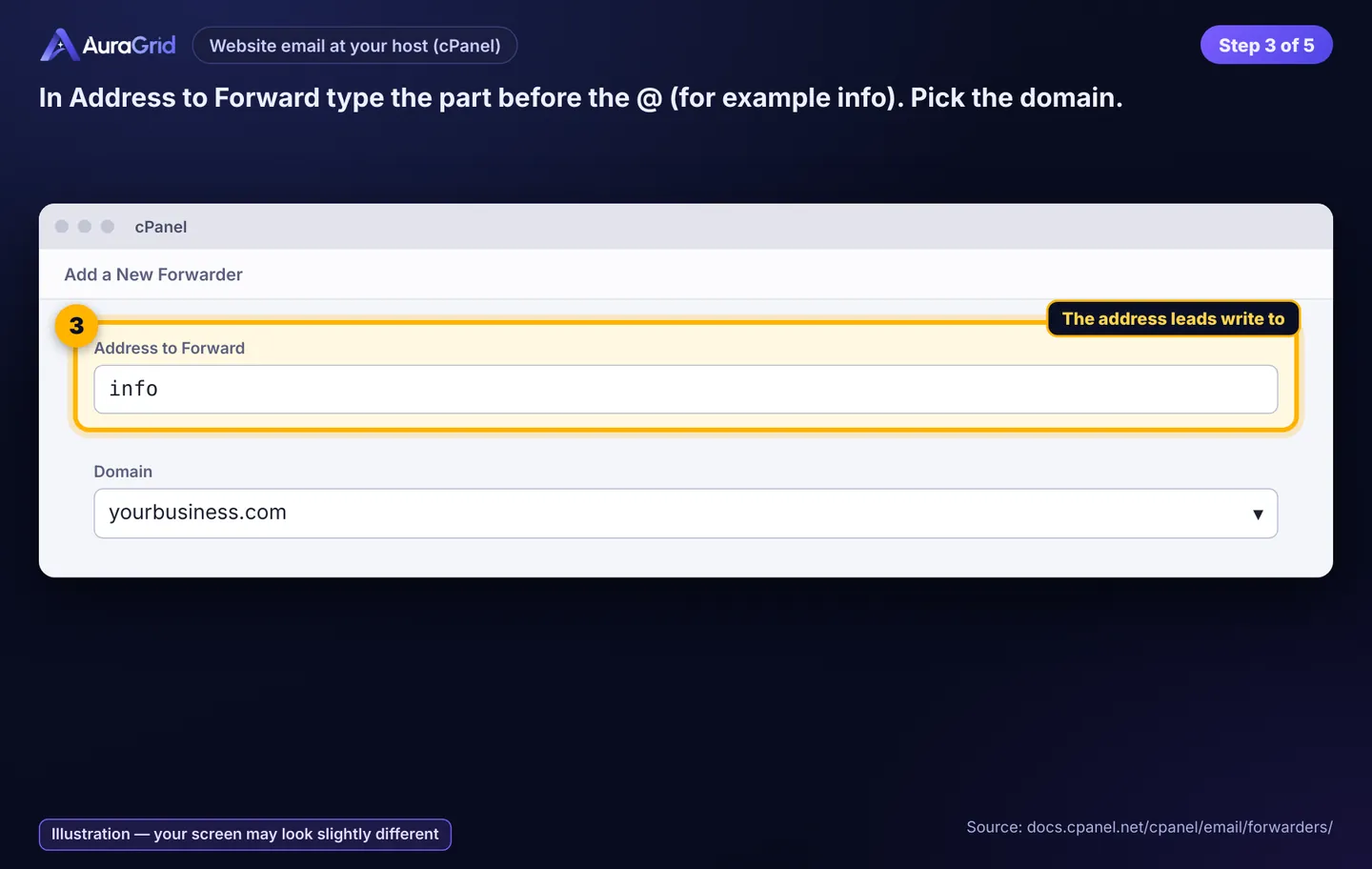
Address to Forward: the part before @ (e.g. info). Pick the Domain.
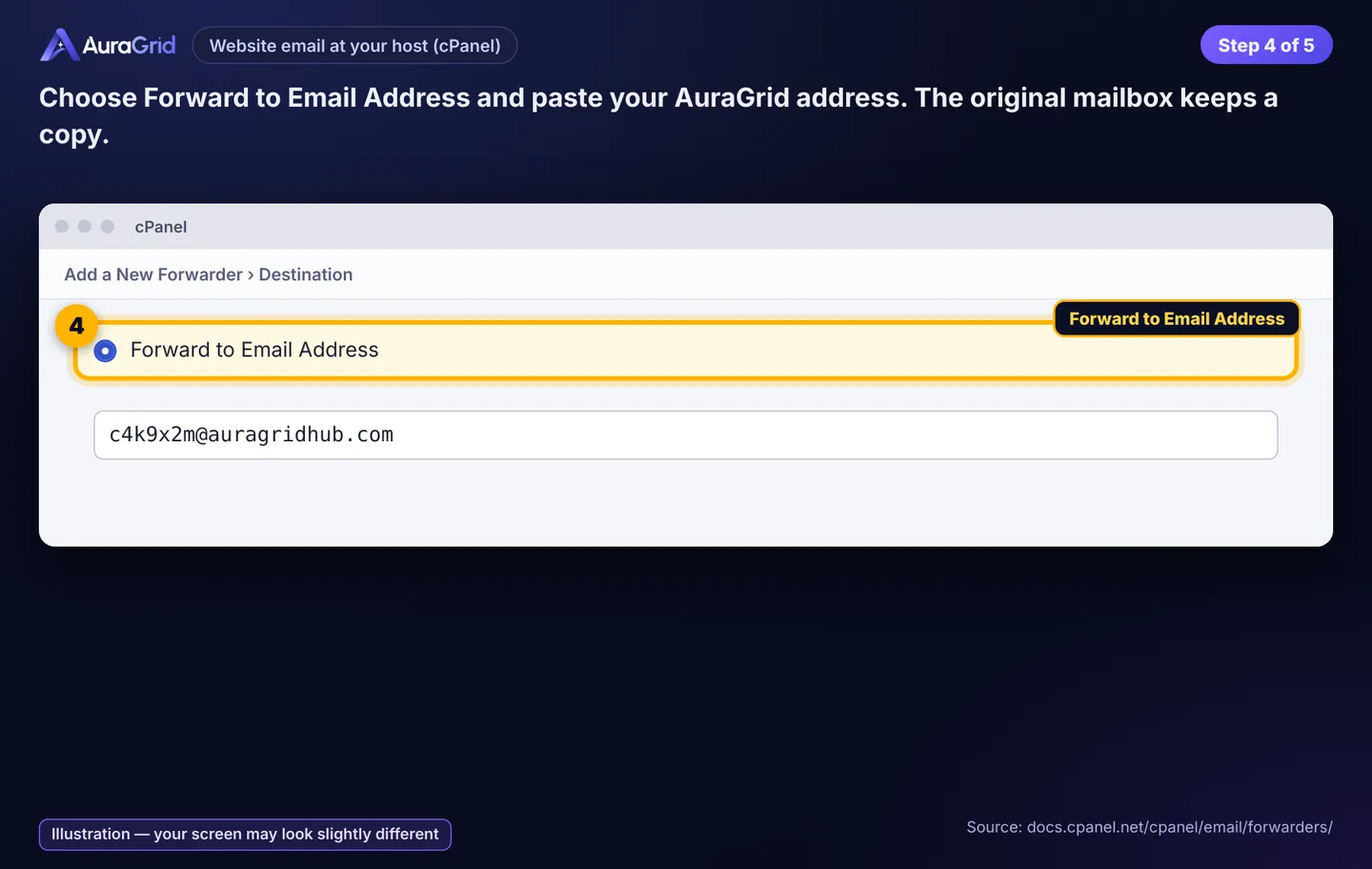
Choose Forward to Email Address and paste your AuraGrid address. Your mailbox keeps a copy.
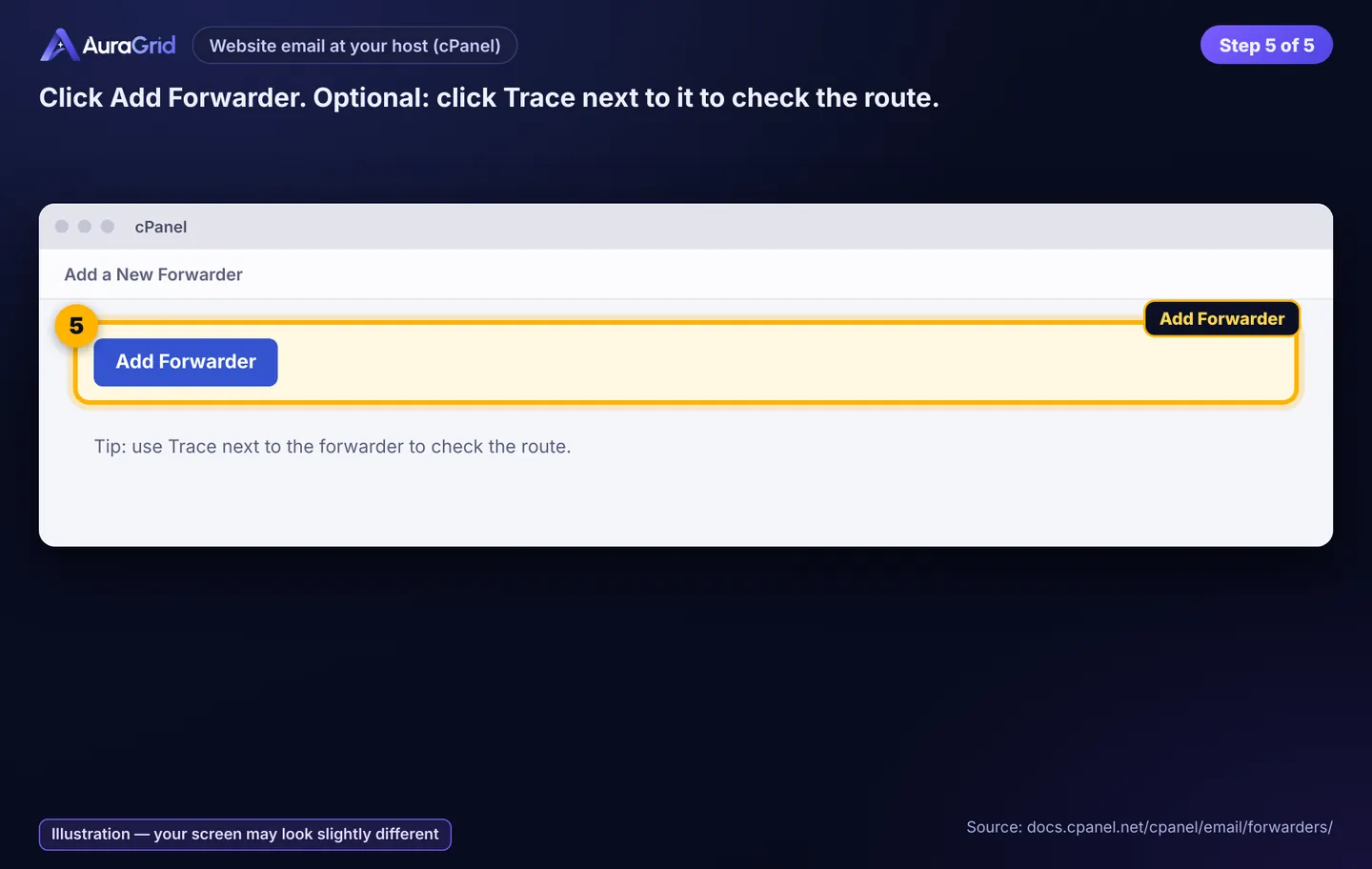
Click Add Forwarder. Optional: Trace to check the route.
Illustration, your screen may look slightly differentIllustration, your screen may look slightly differentIllustration, your screen may look slightly differentIllustration, your screen may look slightly differentIllustration, your screen may look slightly different
2D. WordPress: Contact Form 7
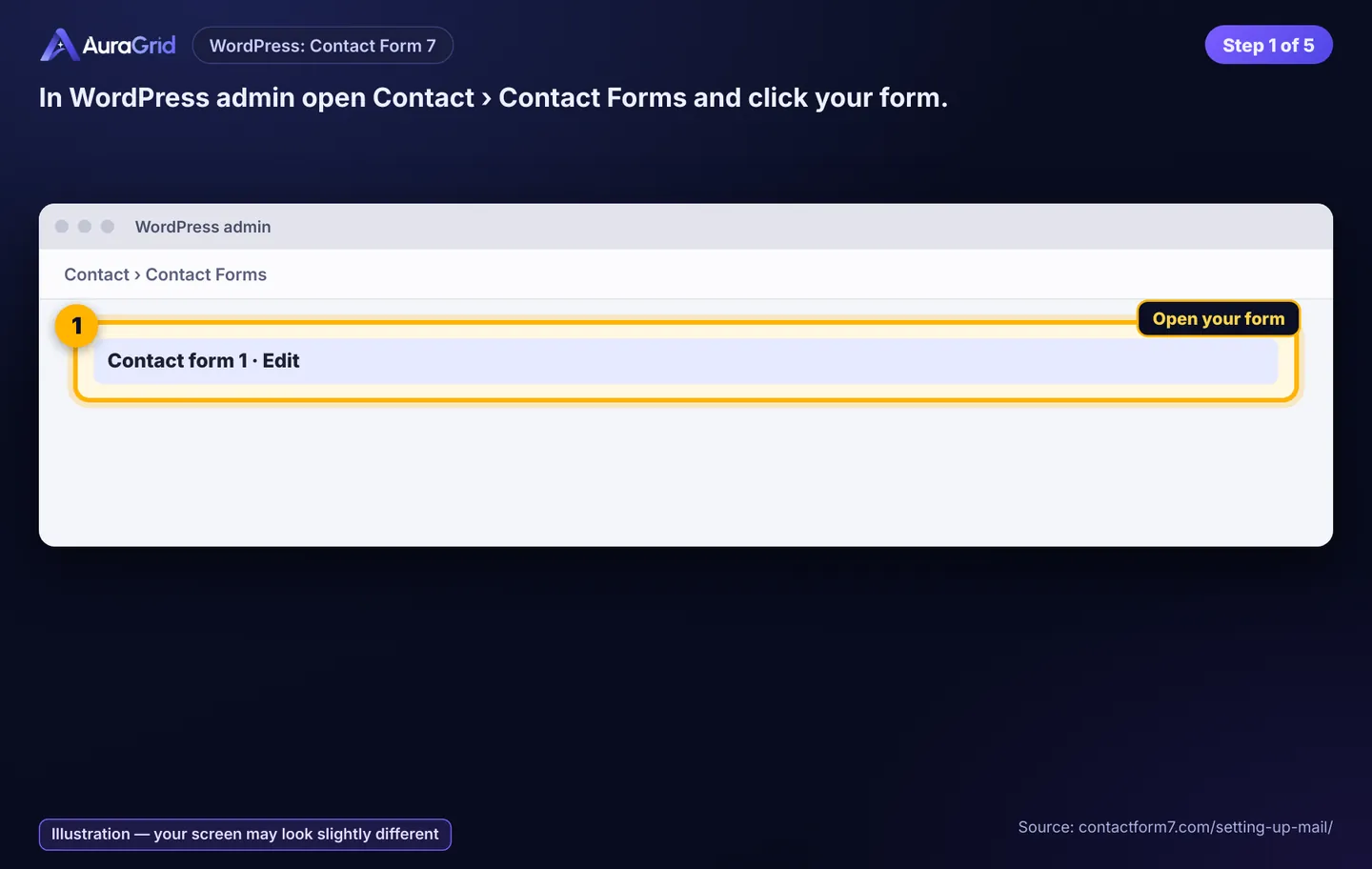
Contact › Contact Forms, open your form.
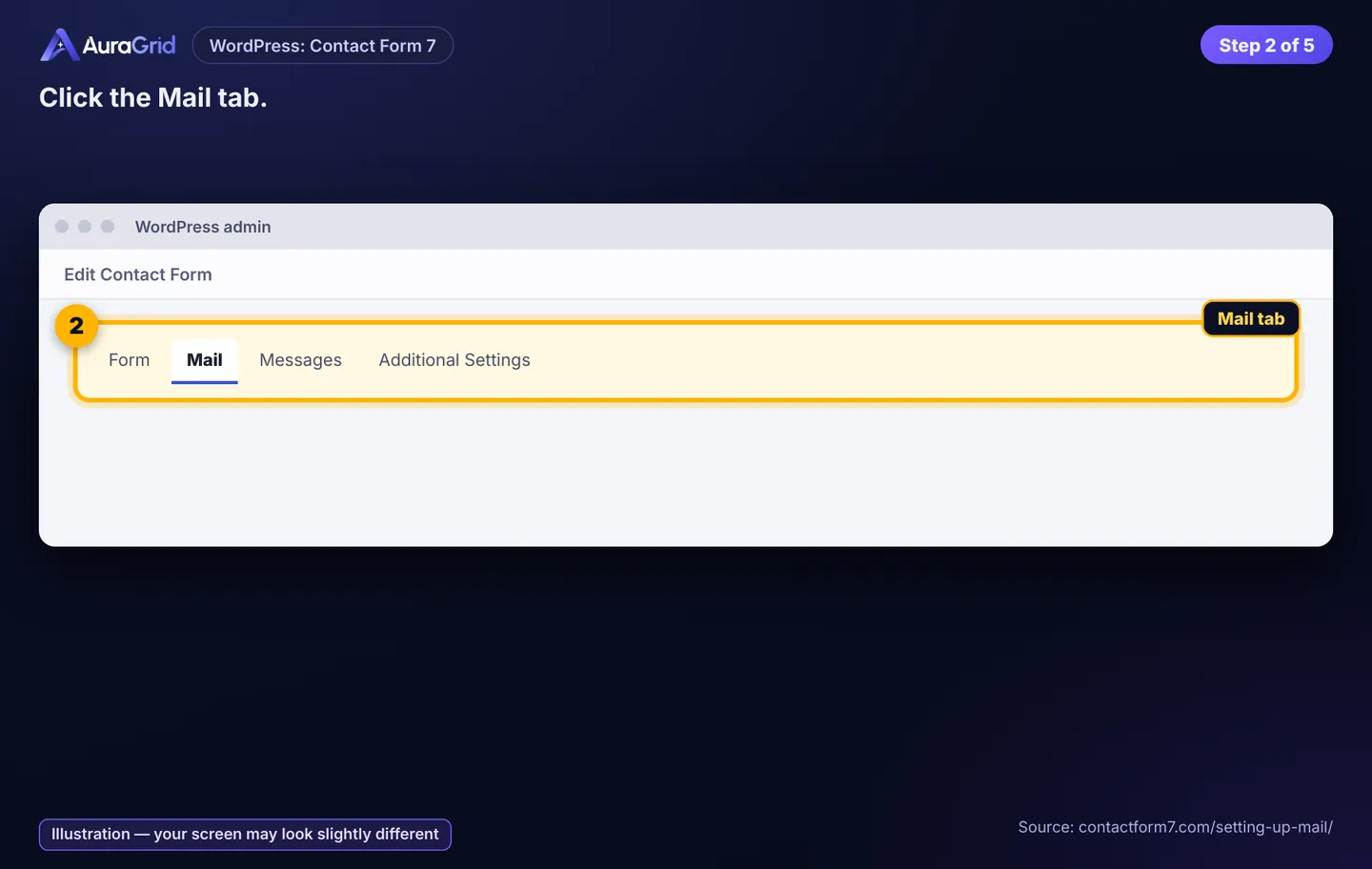
Mail tab.
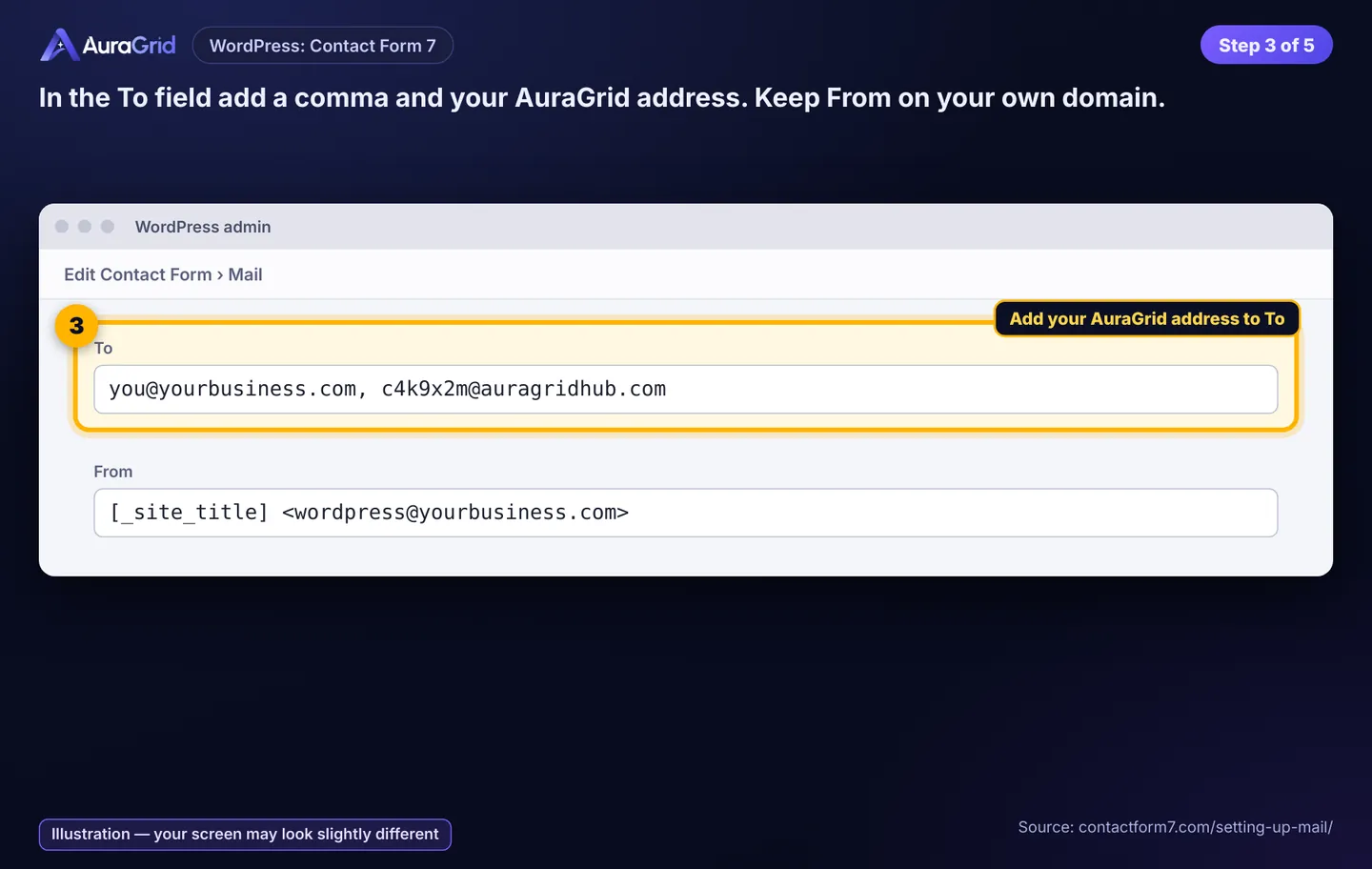
To: add + your AuraGrid address. Keep From on your own domain.
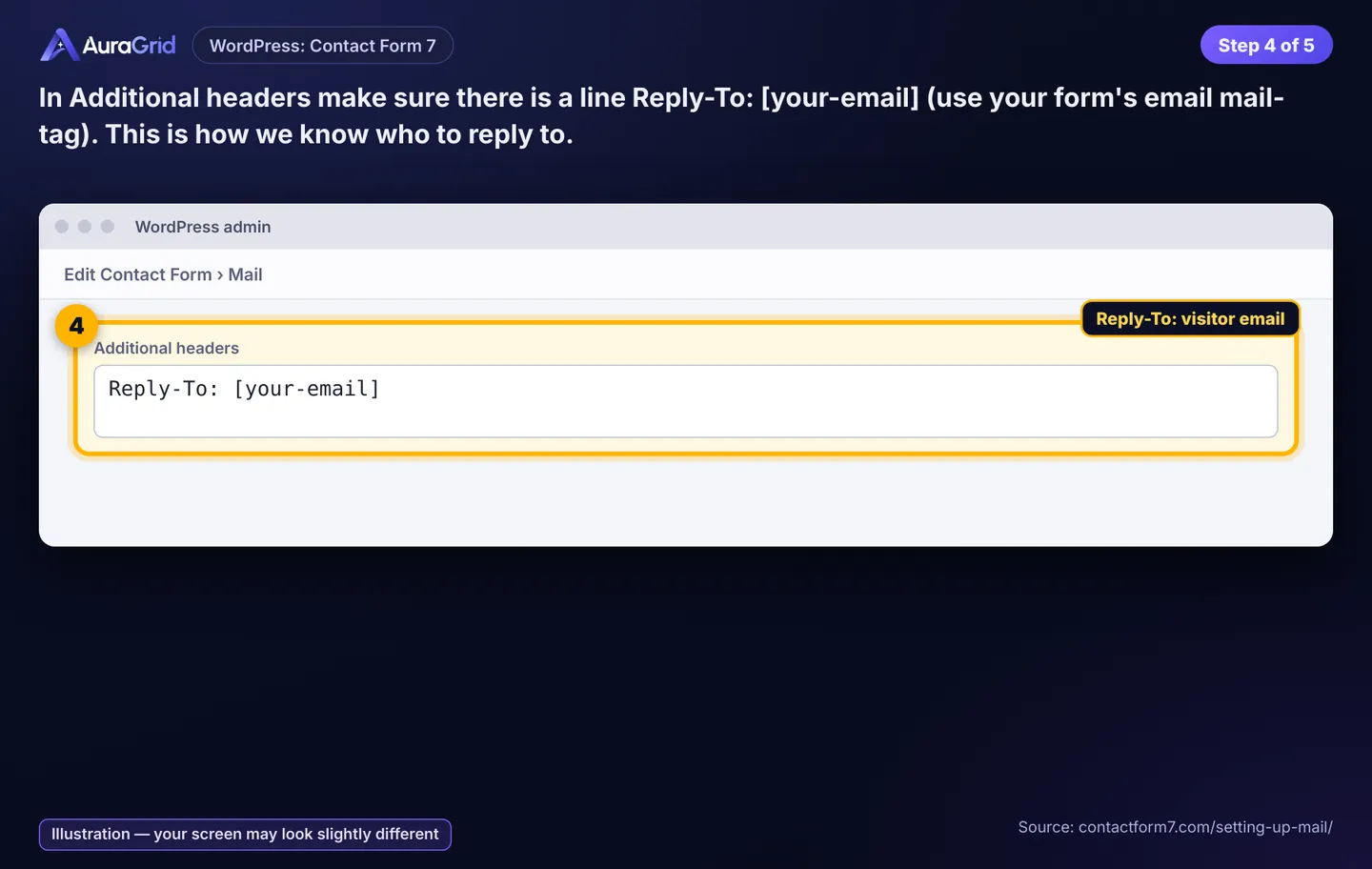
Additional headers: (your form's email mail-tag).
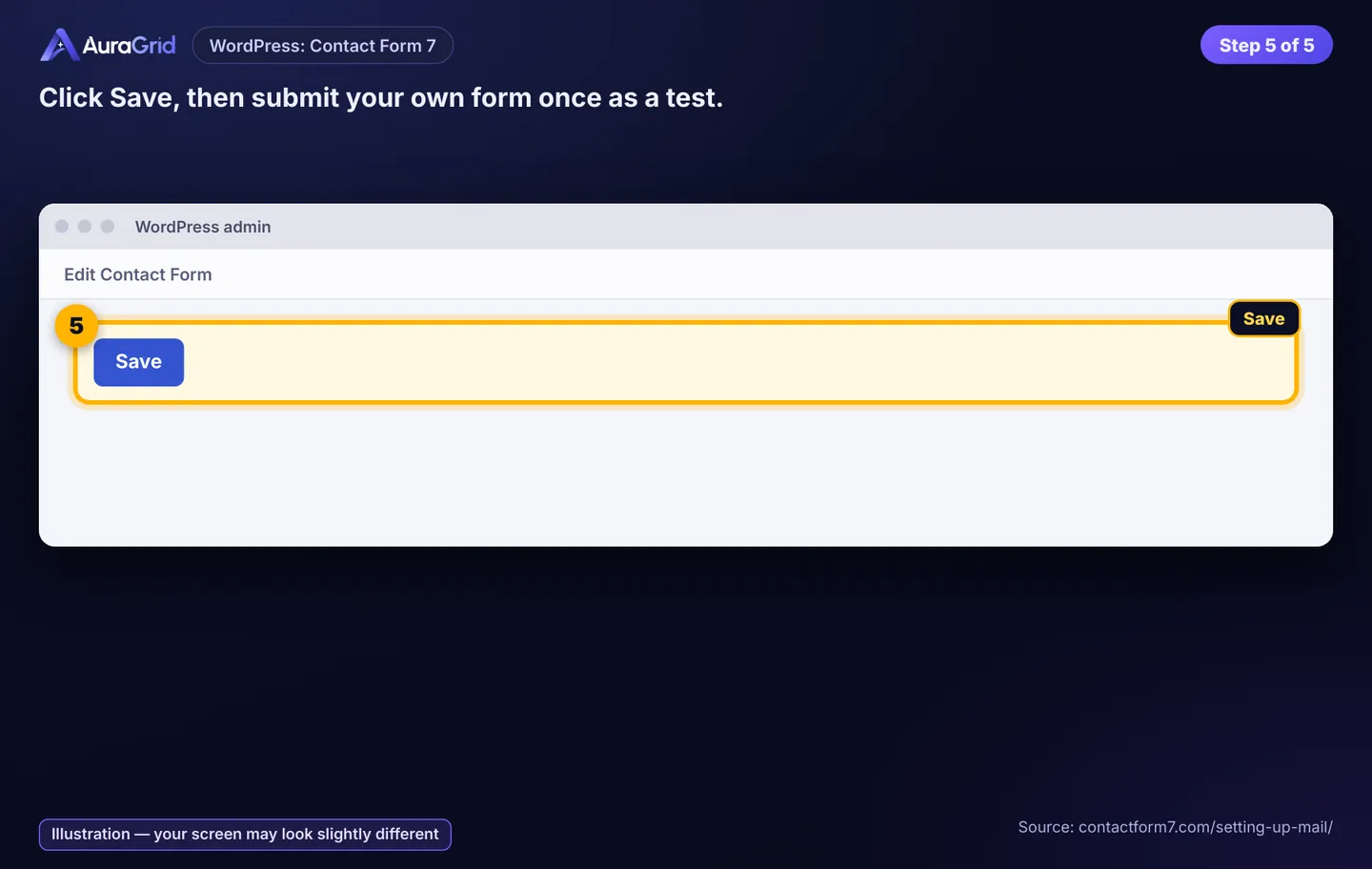
Save; submit your form once as a test.
Illustration, your screen may look slightly differentIllustration, your screen may look slightly differentIllustration, your screen may look slightly differentIllustration, your screen may look slightly differentIllustration, your screen may look slightly different
2E. WordPress: WPForms
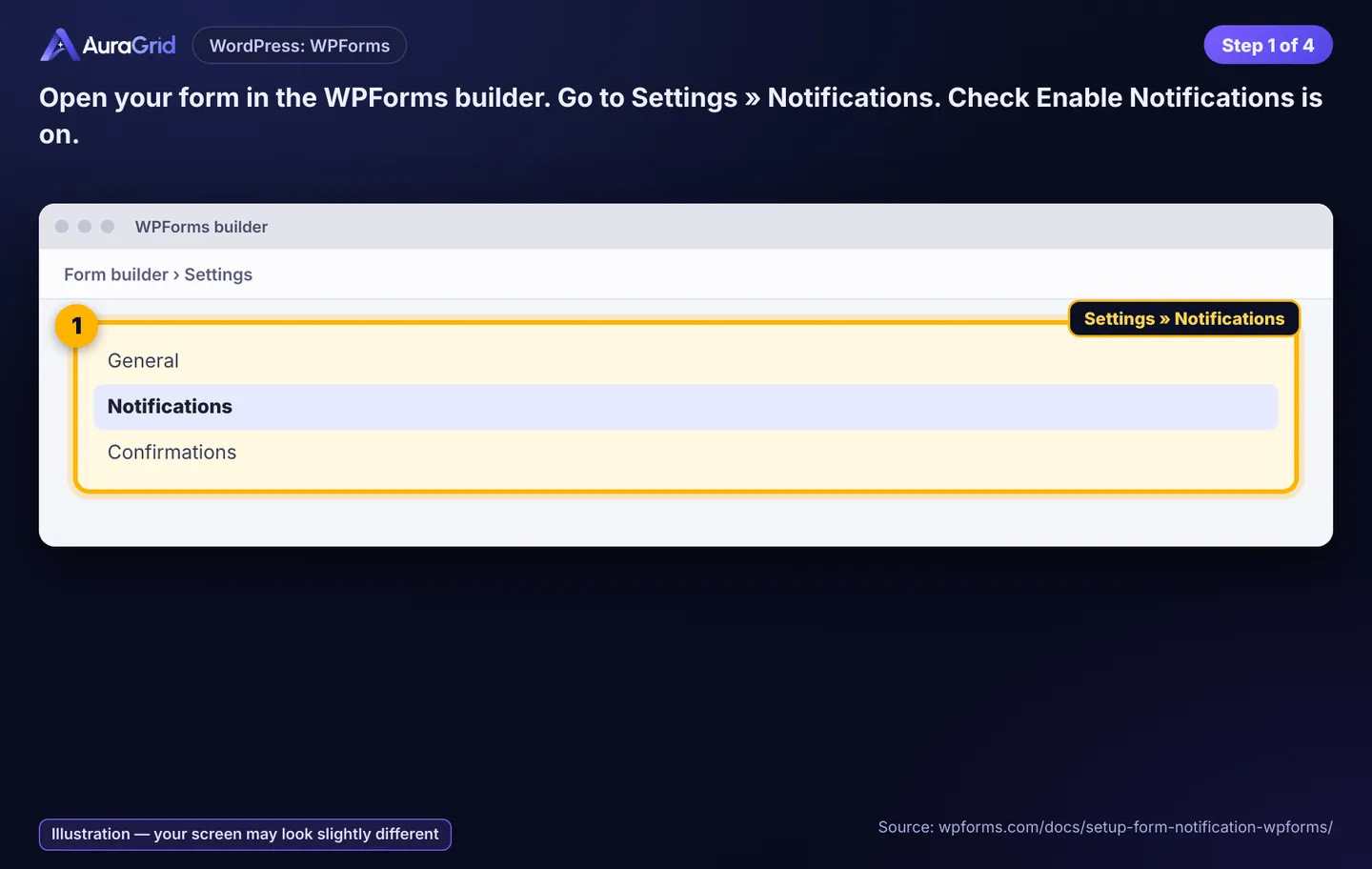
Form builder › Settings » Notifications; Enable Notifications on.
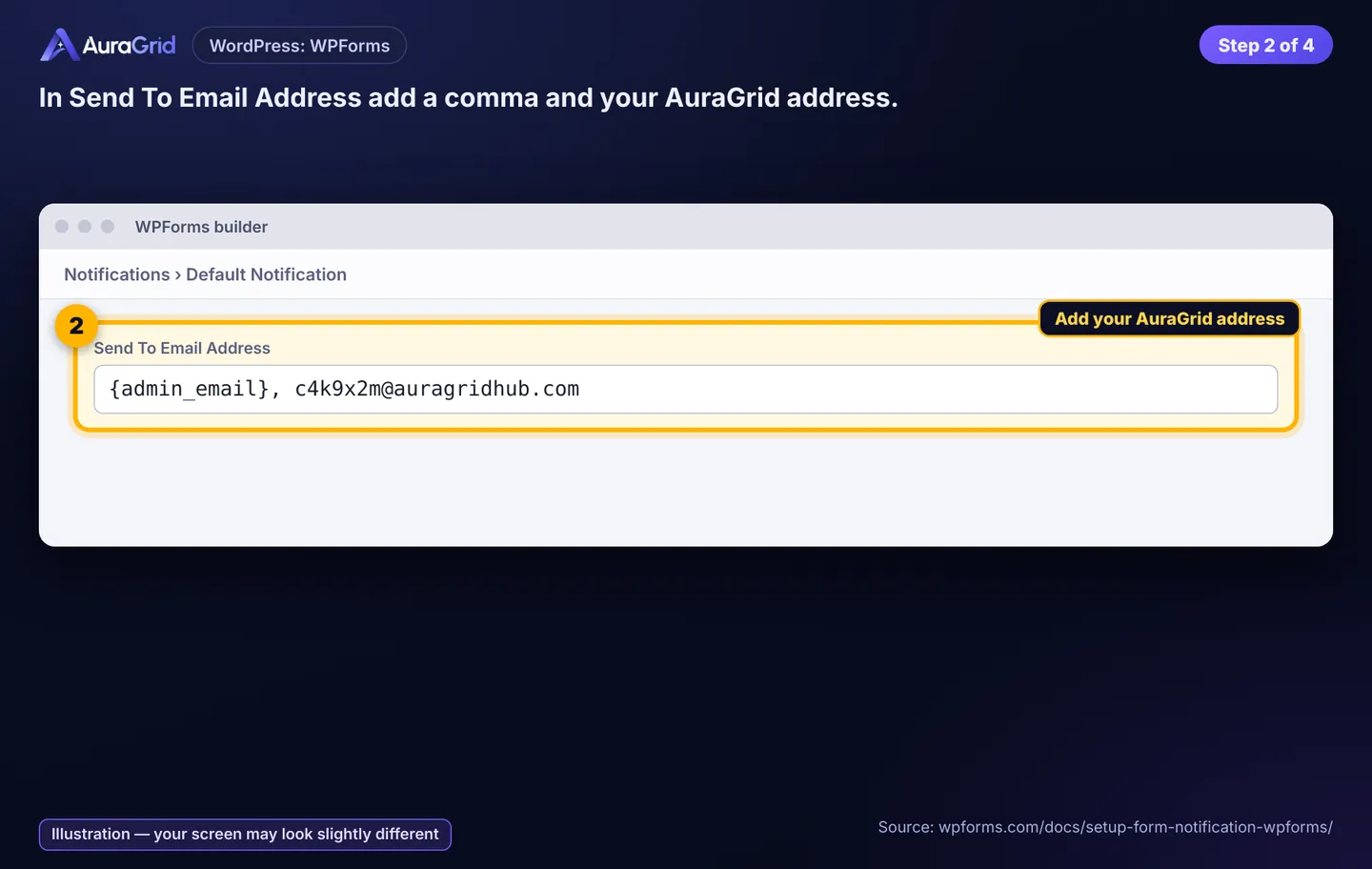
Send To Email Address: add + your AuraGrid address.
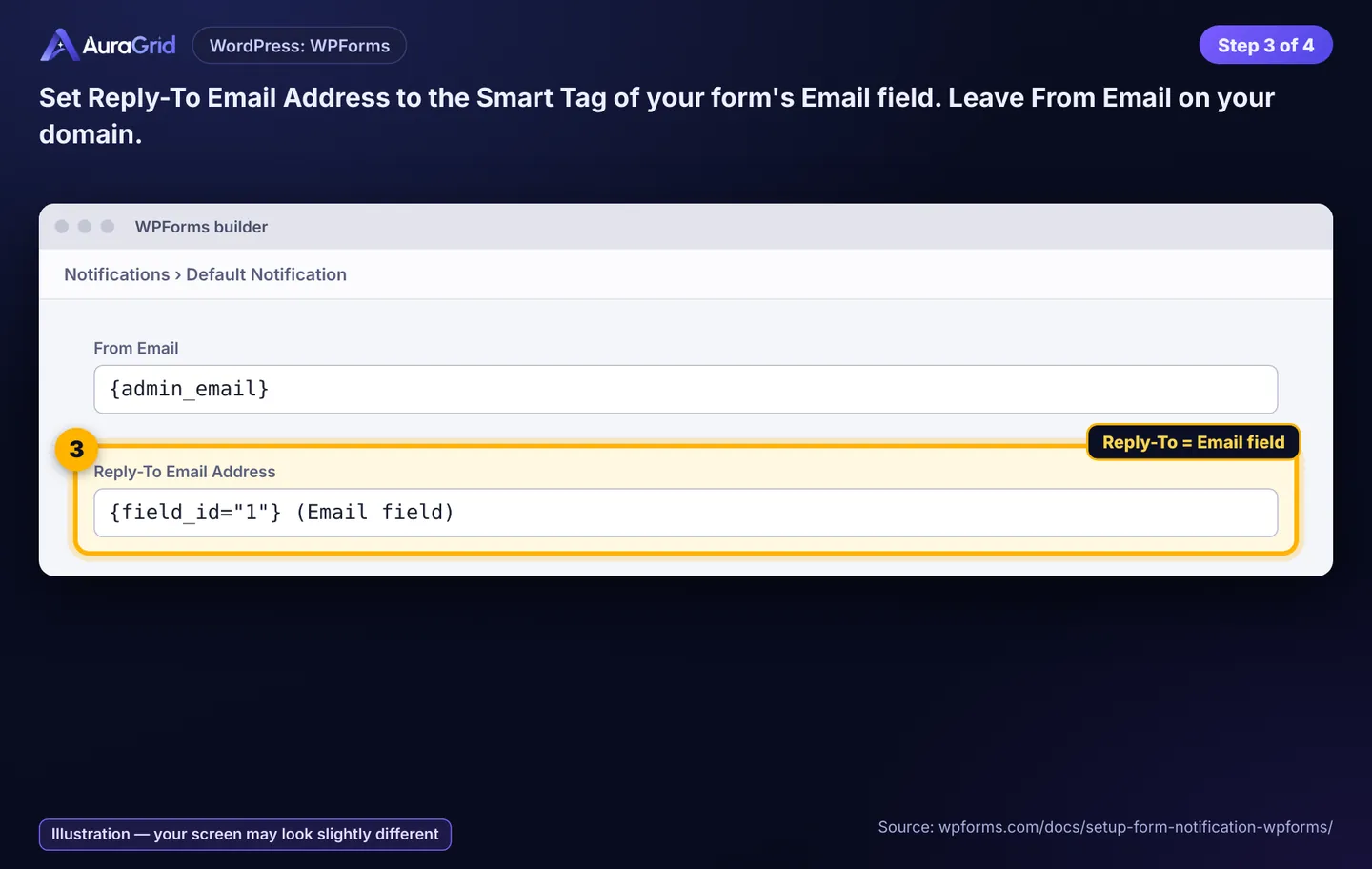
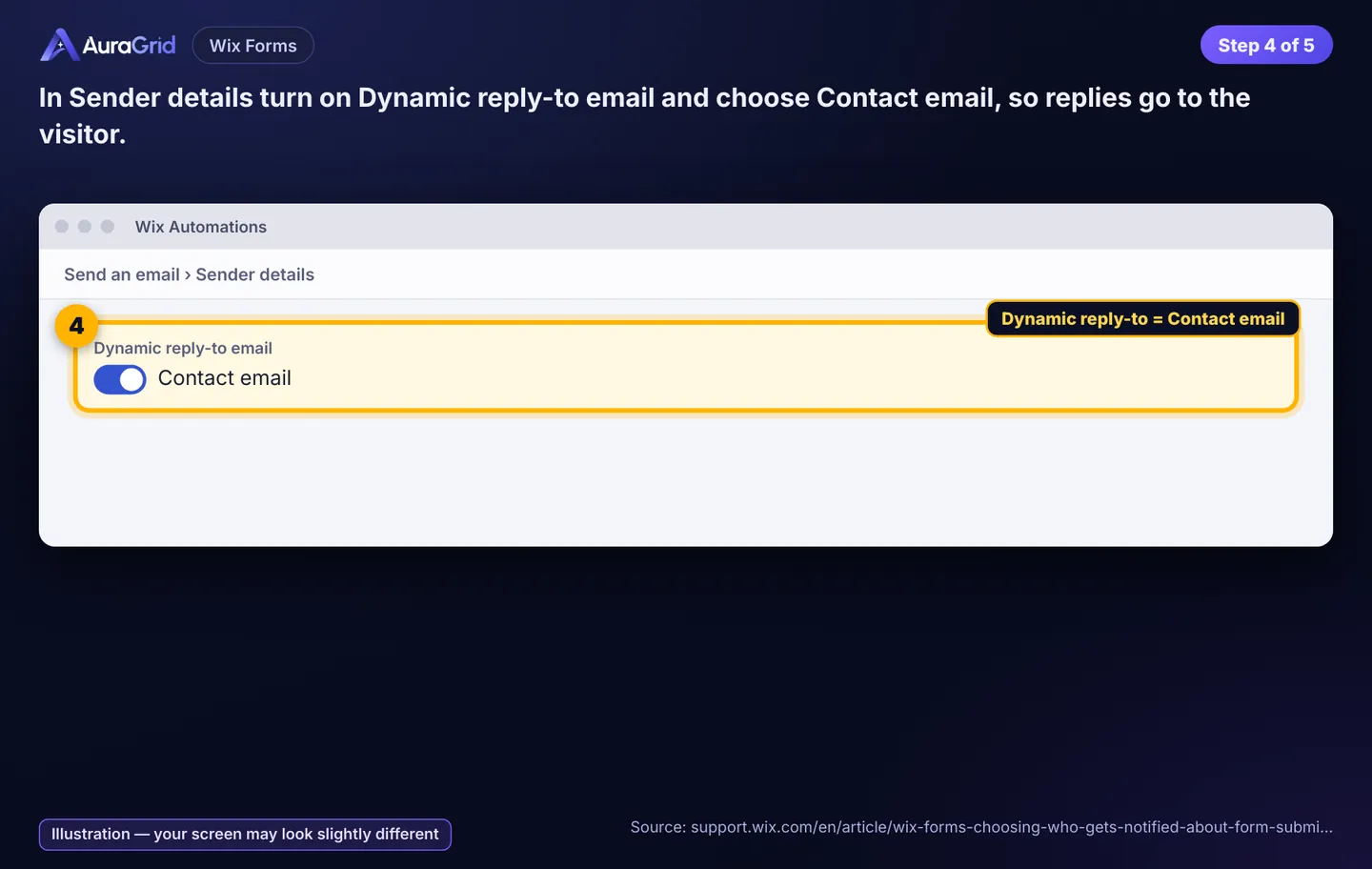
Reply-To Email Address: the Smart Tag of your Email field. Leave From Email on your domain.
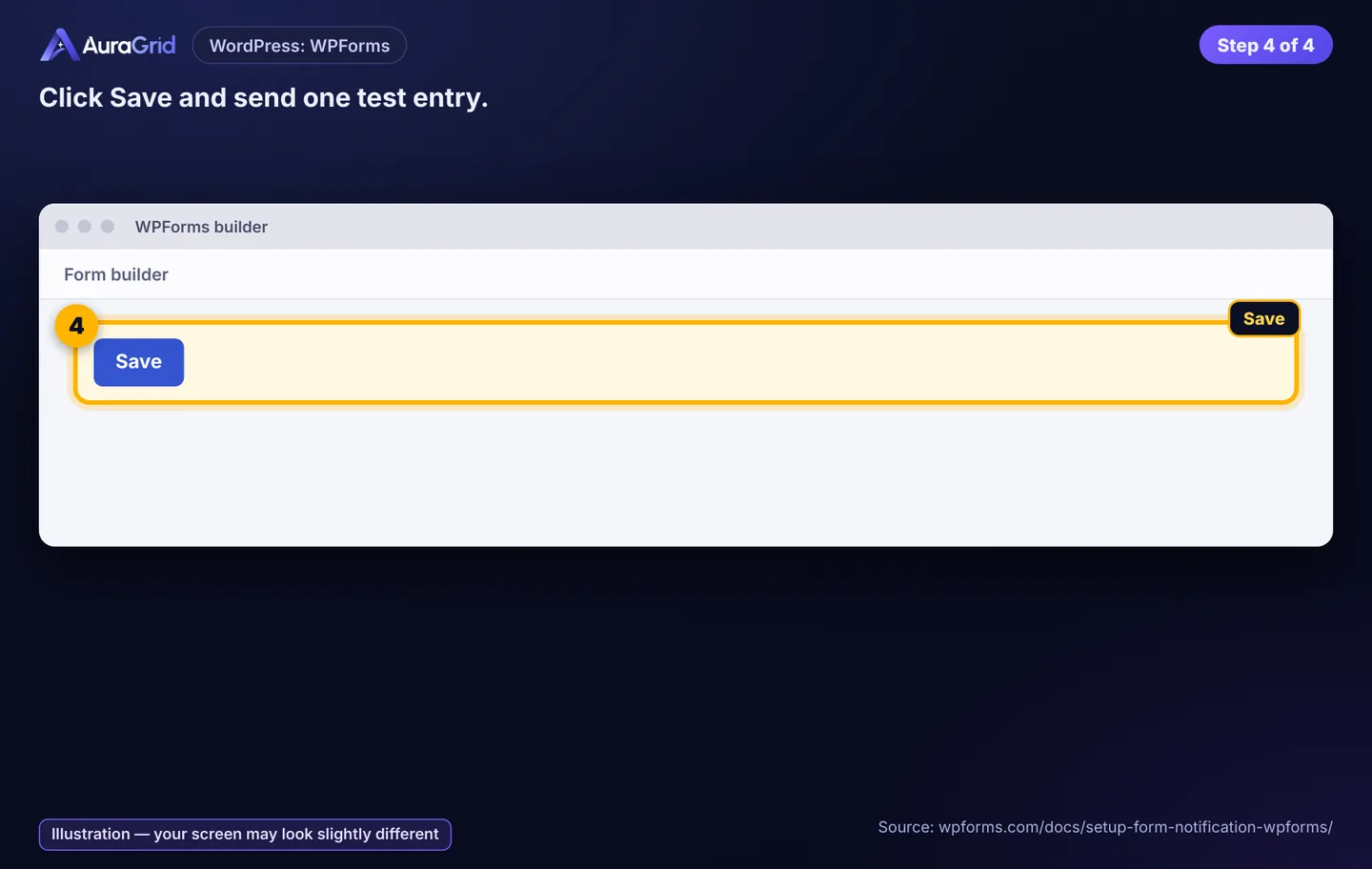
Save; send a test entry.
Illustration, your screen may look slightly differentIllustration, your screen may look slightly differentIllustration, your screen may look slightly differentIllustration, your screen may look slightly different
2F. Wix Forms
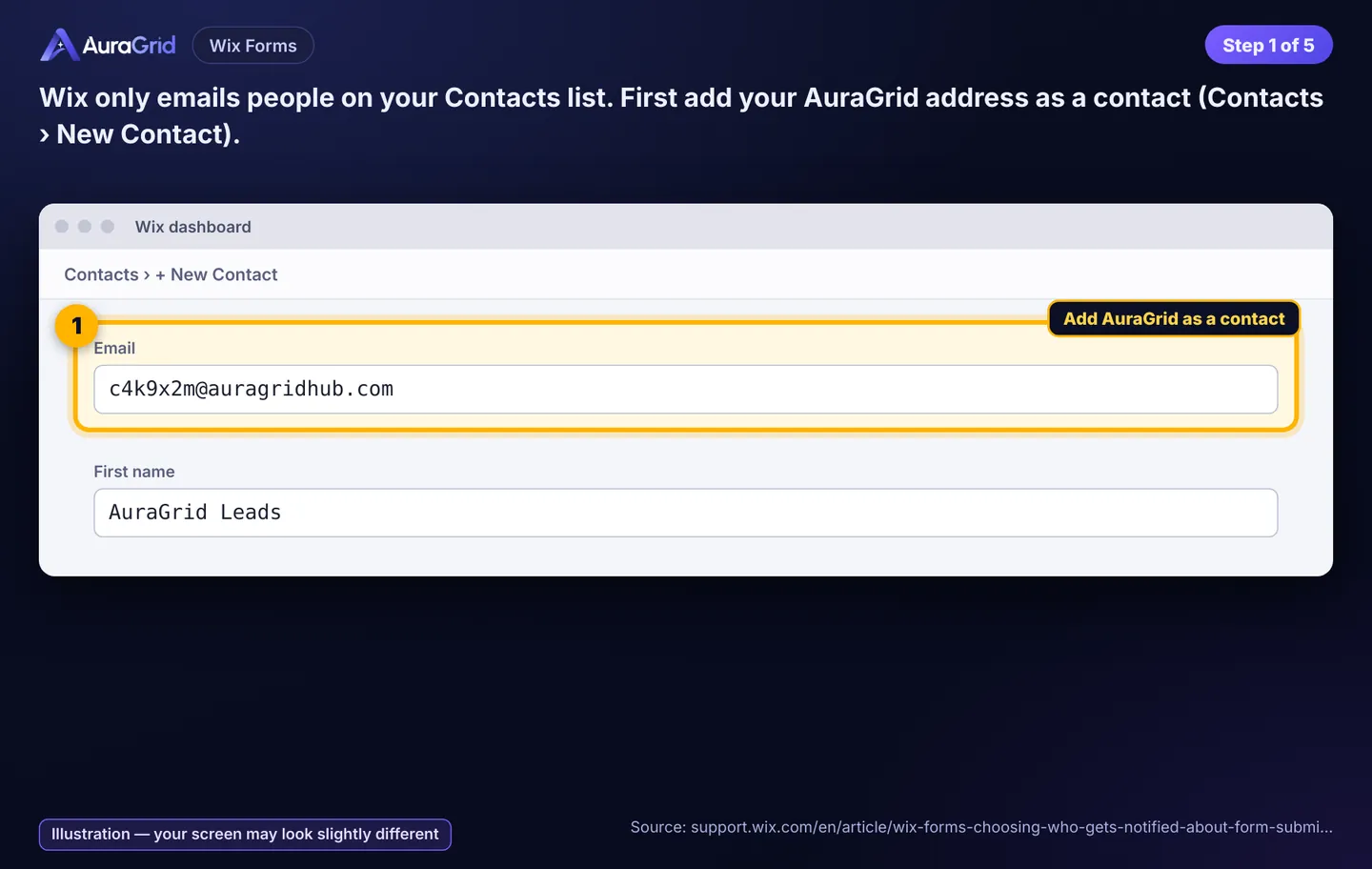
Contacts › New Contact: add your AuraGrid address (Wix emails only contacts or collaborators).
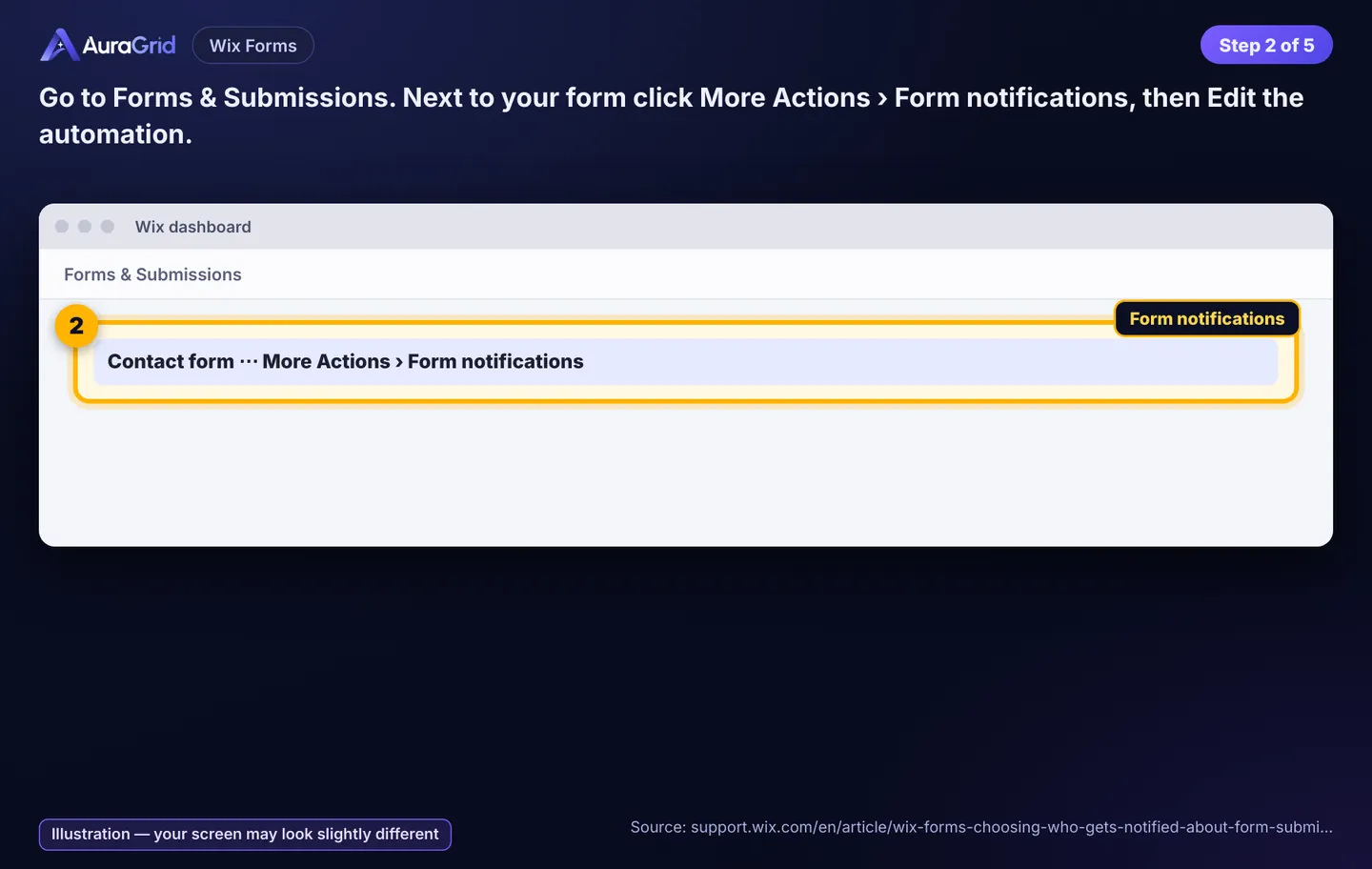
Forms & Submissions › next to your form More Actions › Form notifications › Edit the automation.
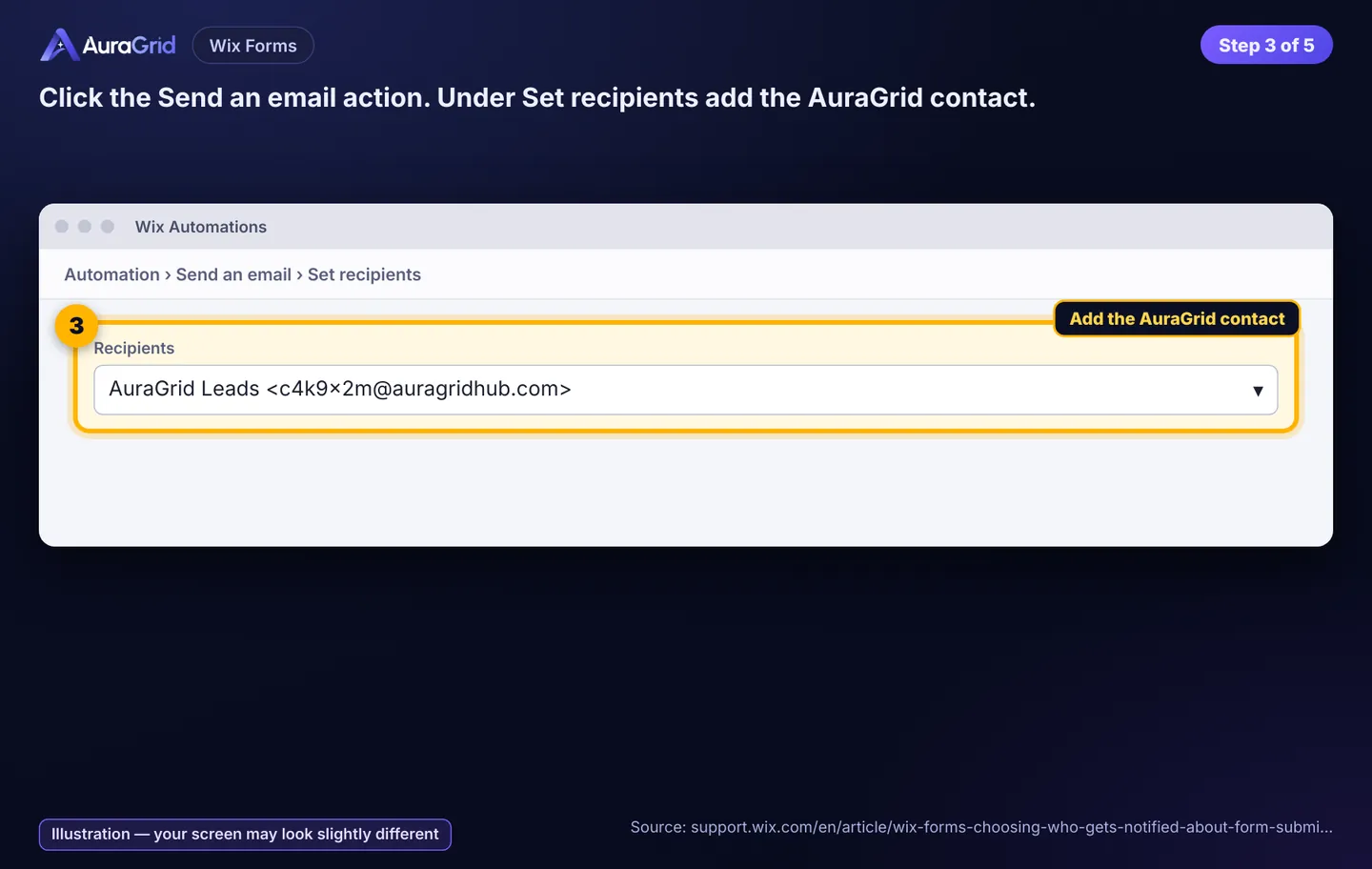
Send an email action › Recipients › add the AuraGrid contact.
Illustration, your screen may look slightly differentIllustration, your screen may look slightly differentIllustration, your screen may look slightly differentIllustration, your screen may look slightly differentIllustration, your screen may look slightly different
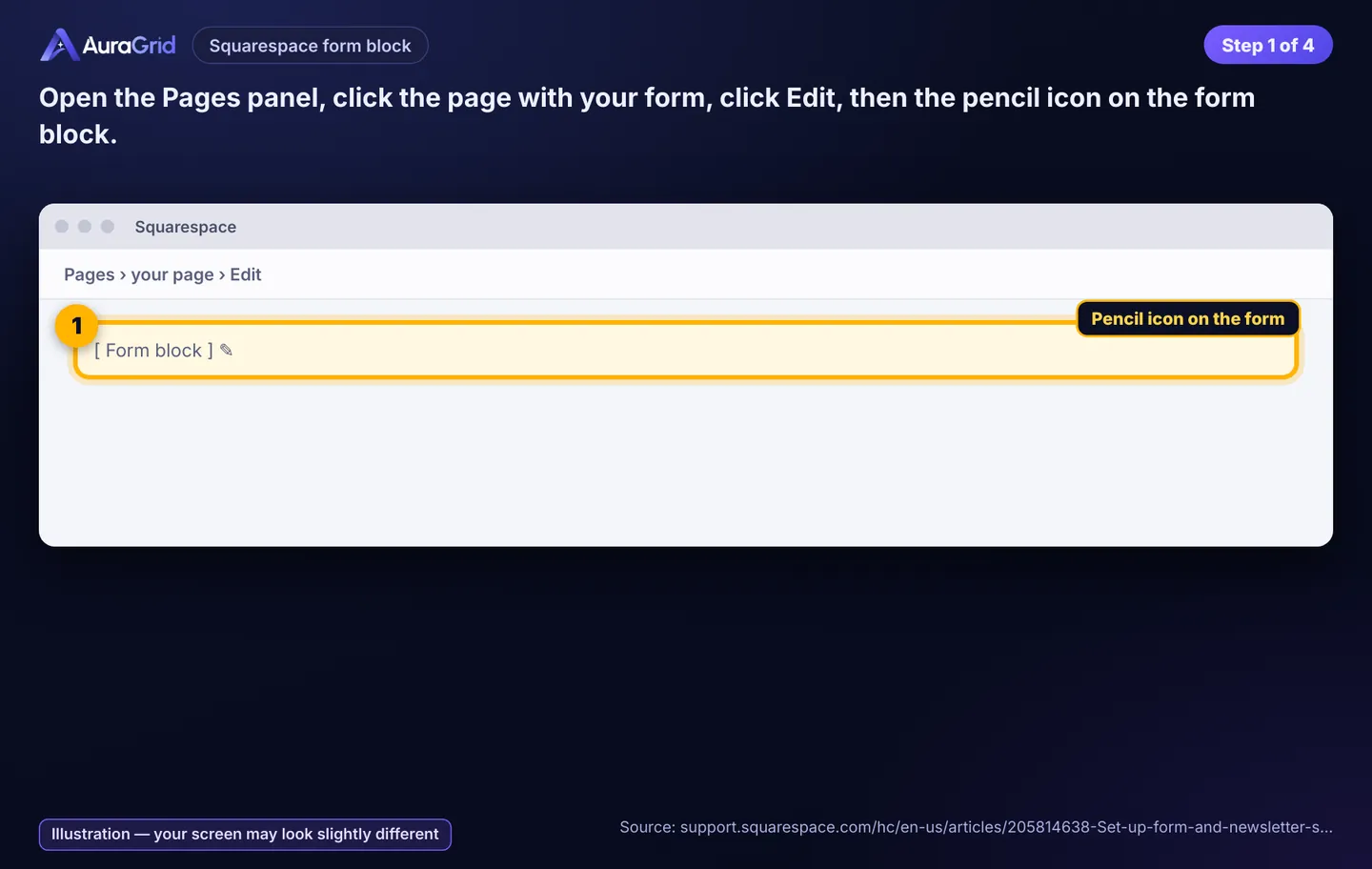
2G. Squarespace form block
Pages › your page › Edit › pencil icon on the form block.
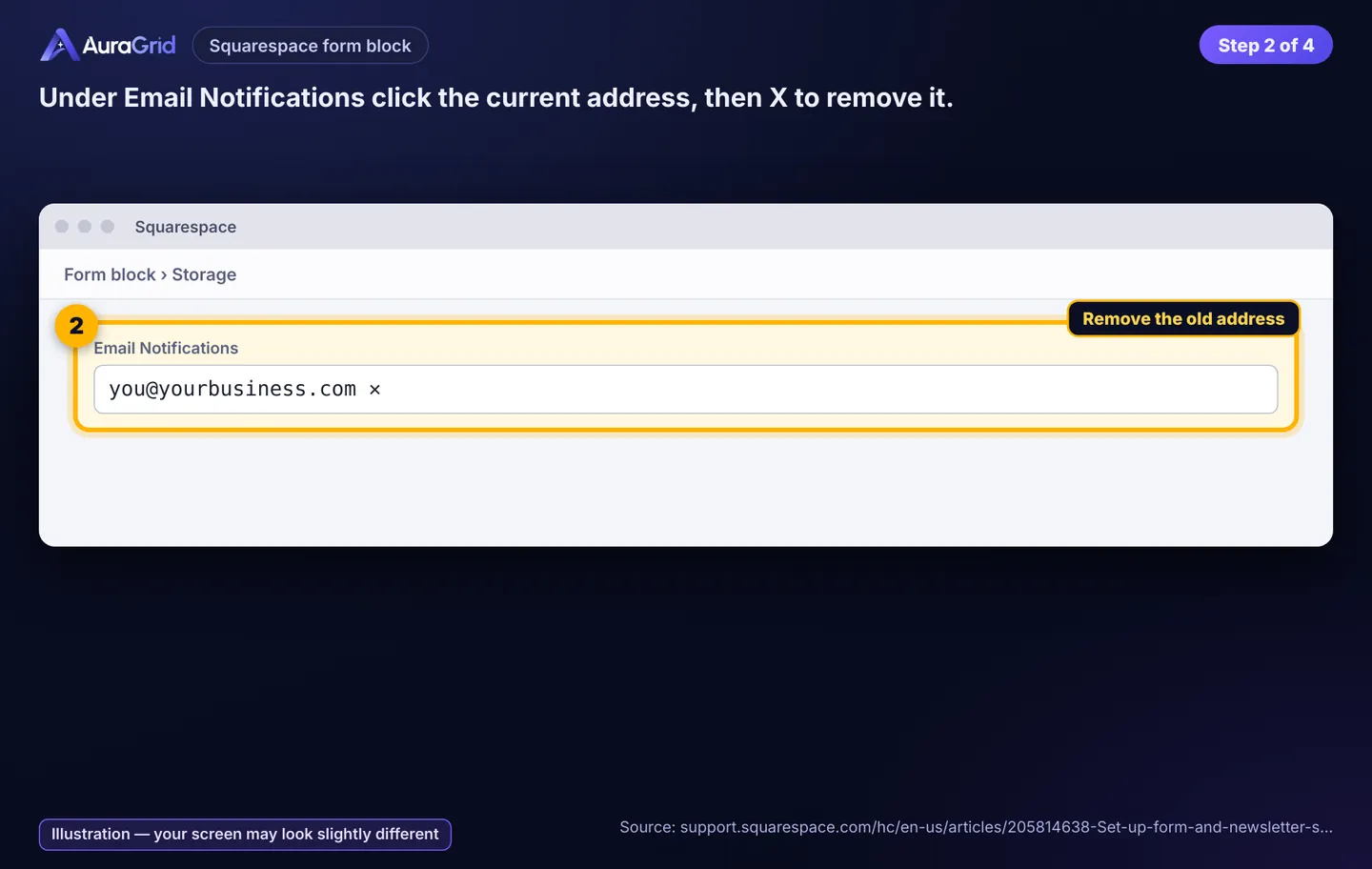
Email Notifications: click the current address, then X.
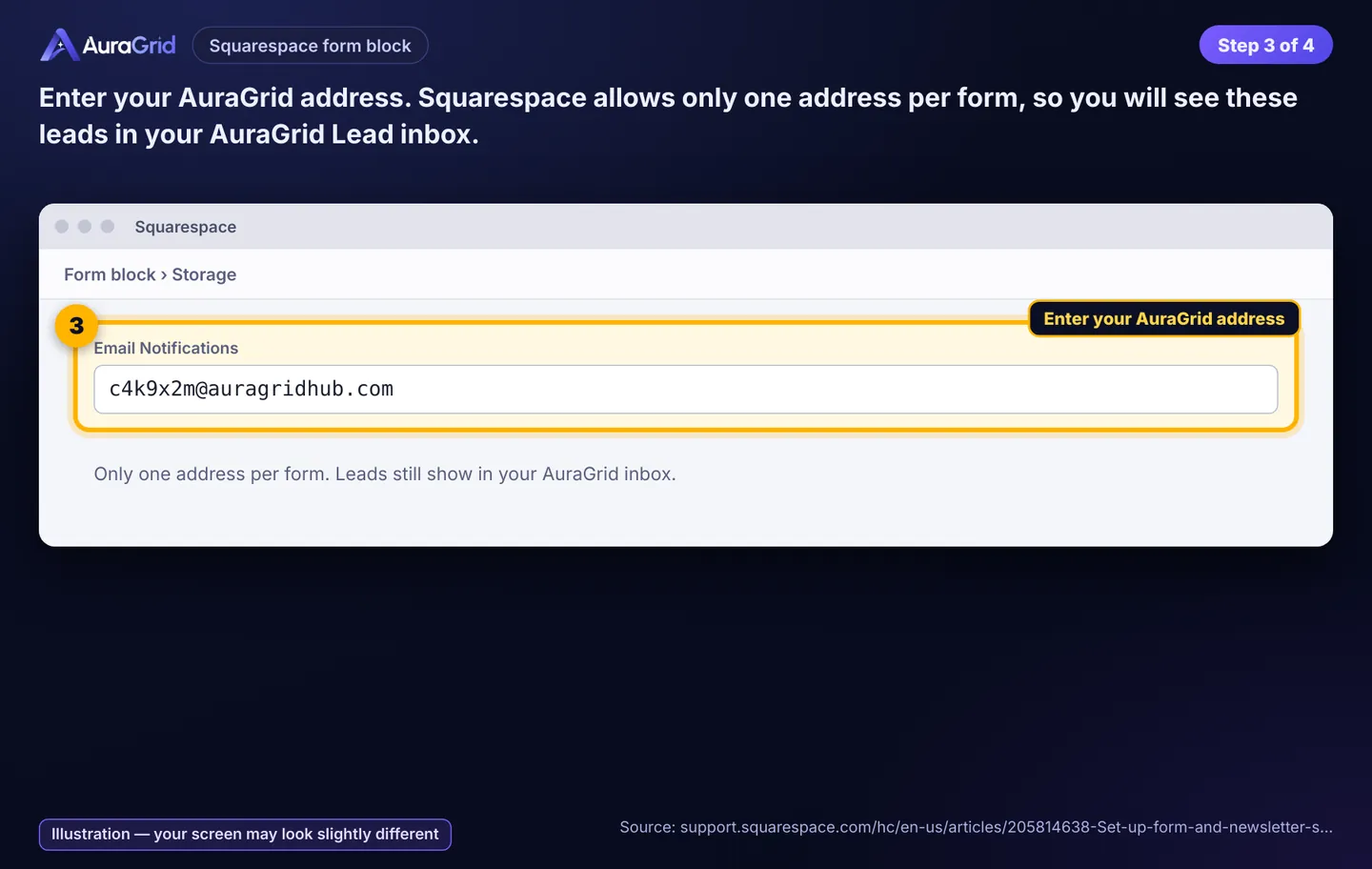
Enter your AuraGrid address (one address per form, so read these leads in your Lead inbox).
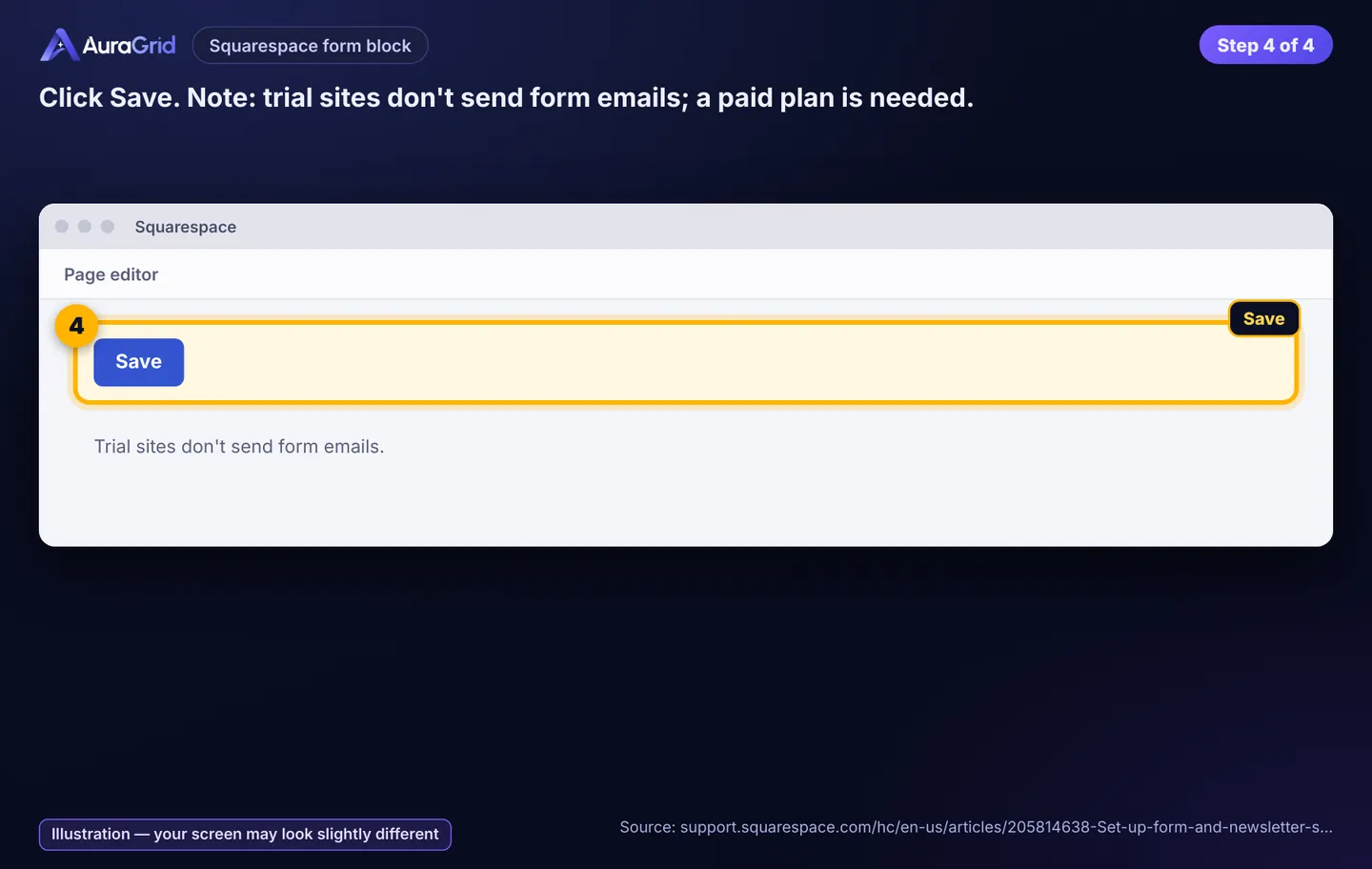
Save. Trial sites don't send form emails; a paid plan is needed.
Illustration, your screen may look slightly differentIllustration, your screen may look slightly differentIllustration, your screen may look slightly differentIllustration, your screen may look slightly different
2H. Webflow forms
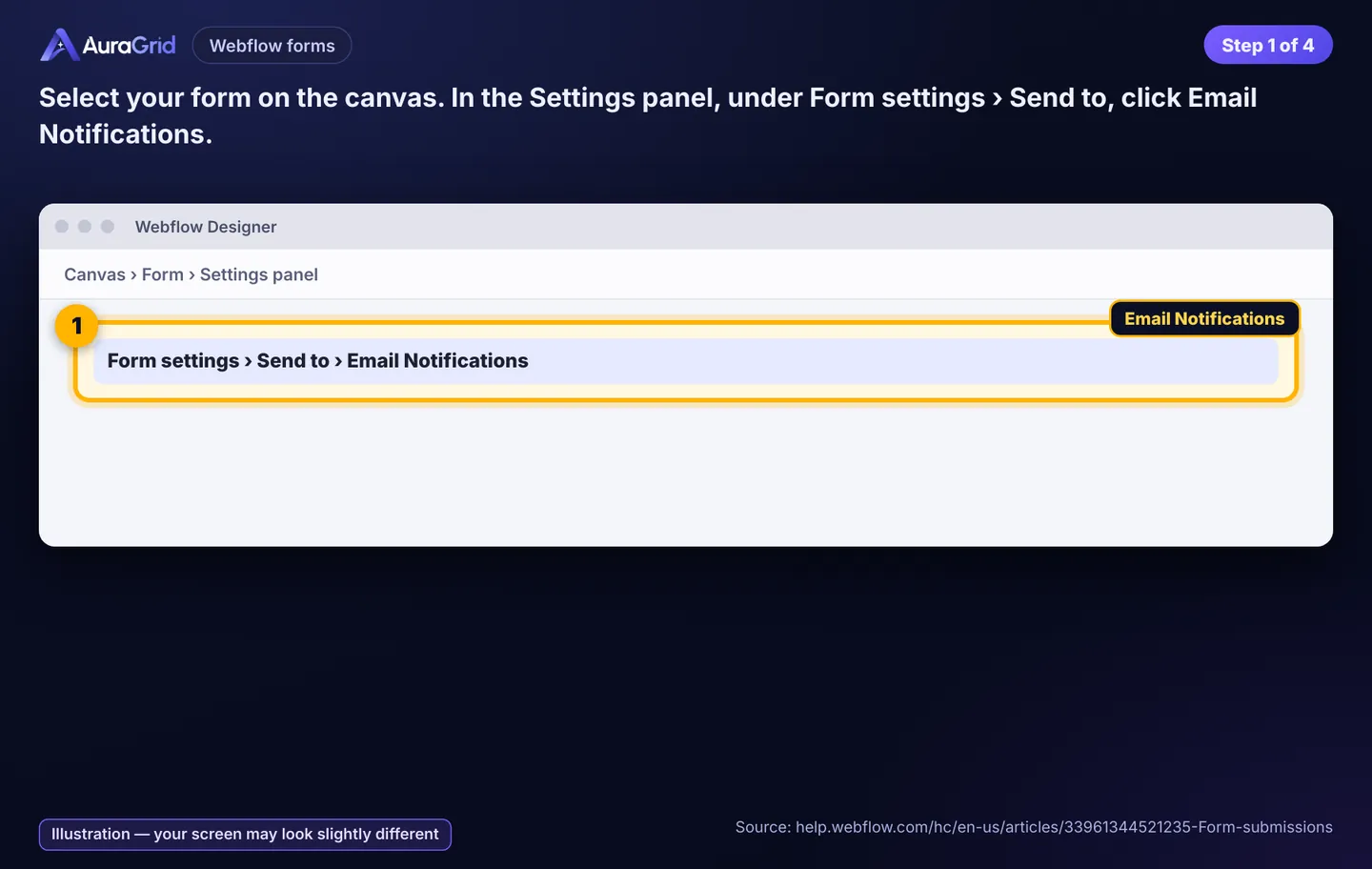
Select the form › Settings panel › Form settings › Send to › Email Notifications.
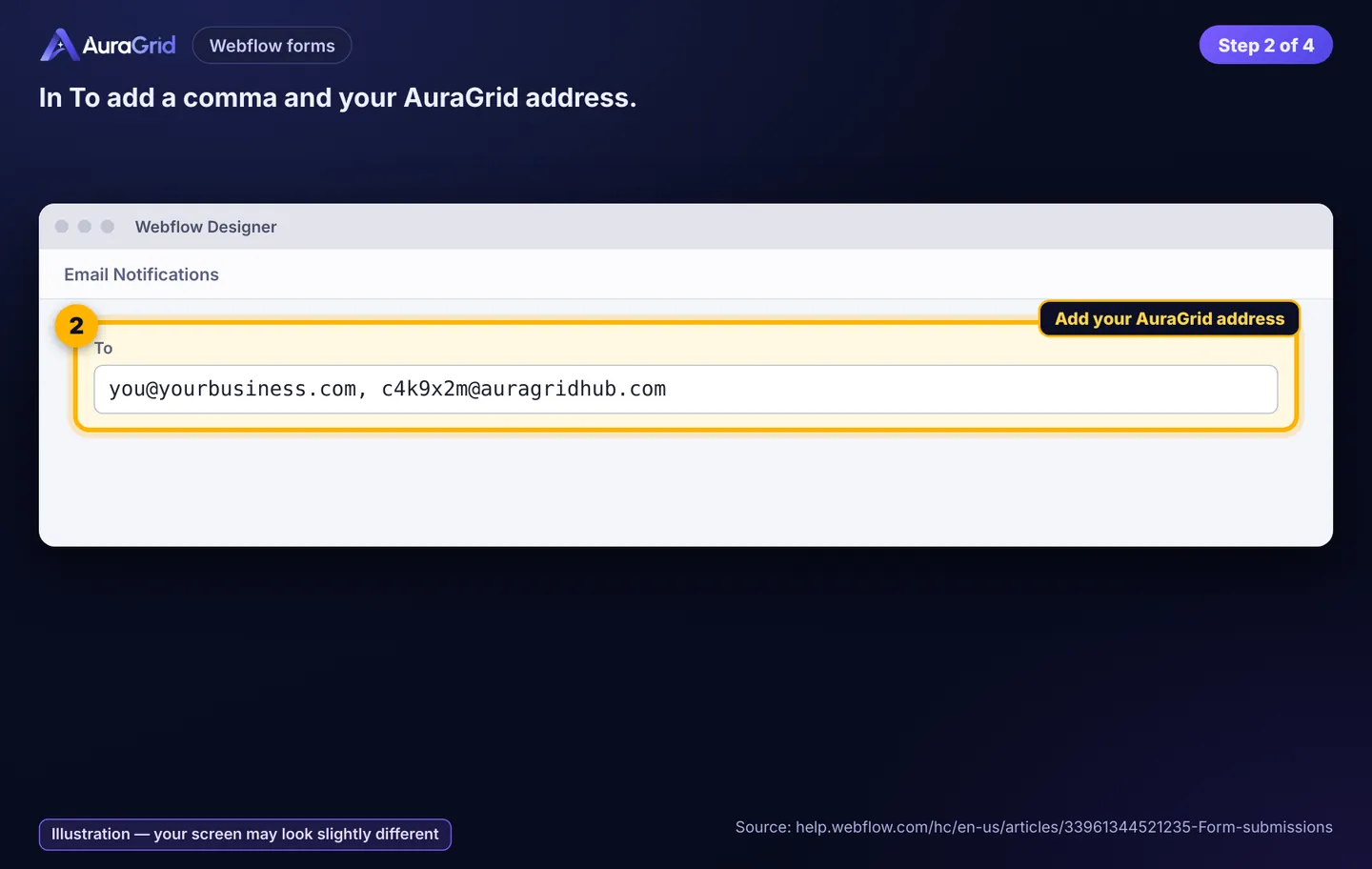
To: add + your AuraGrid address.
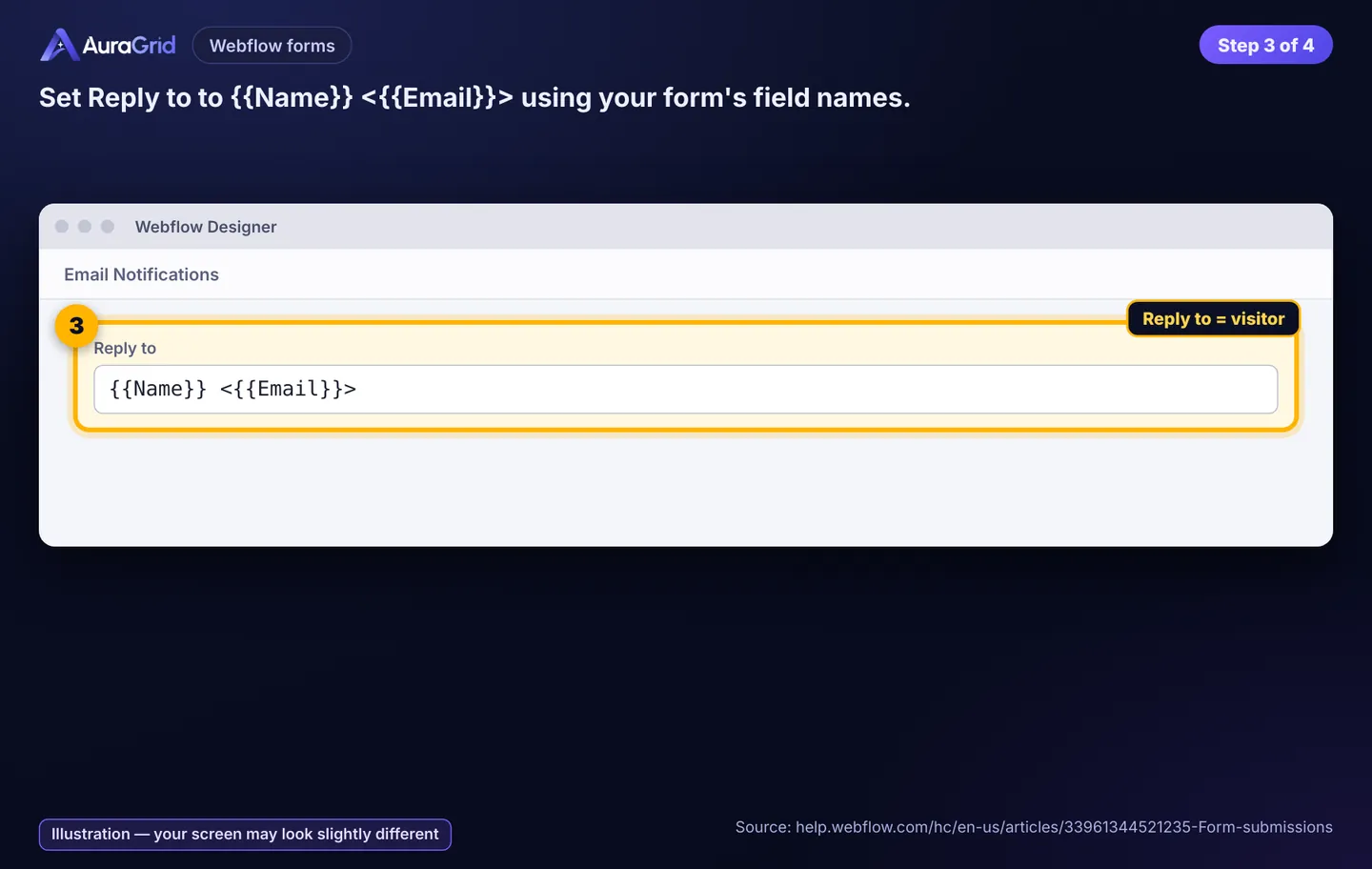
Reply to: (your field names).
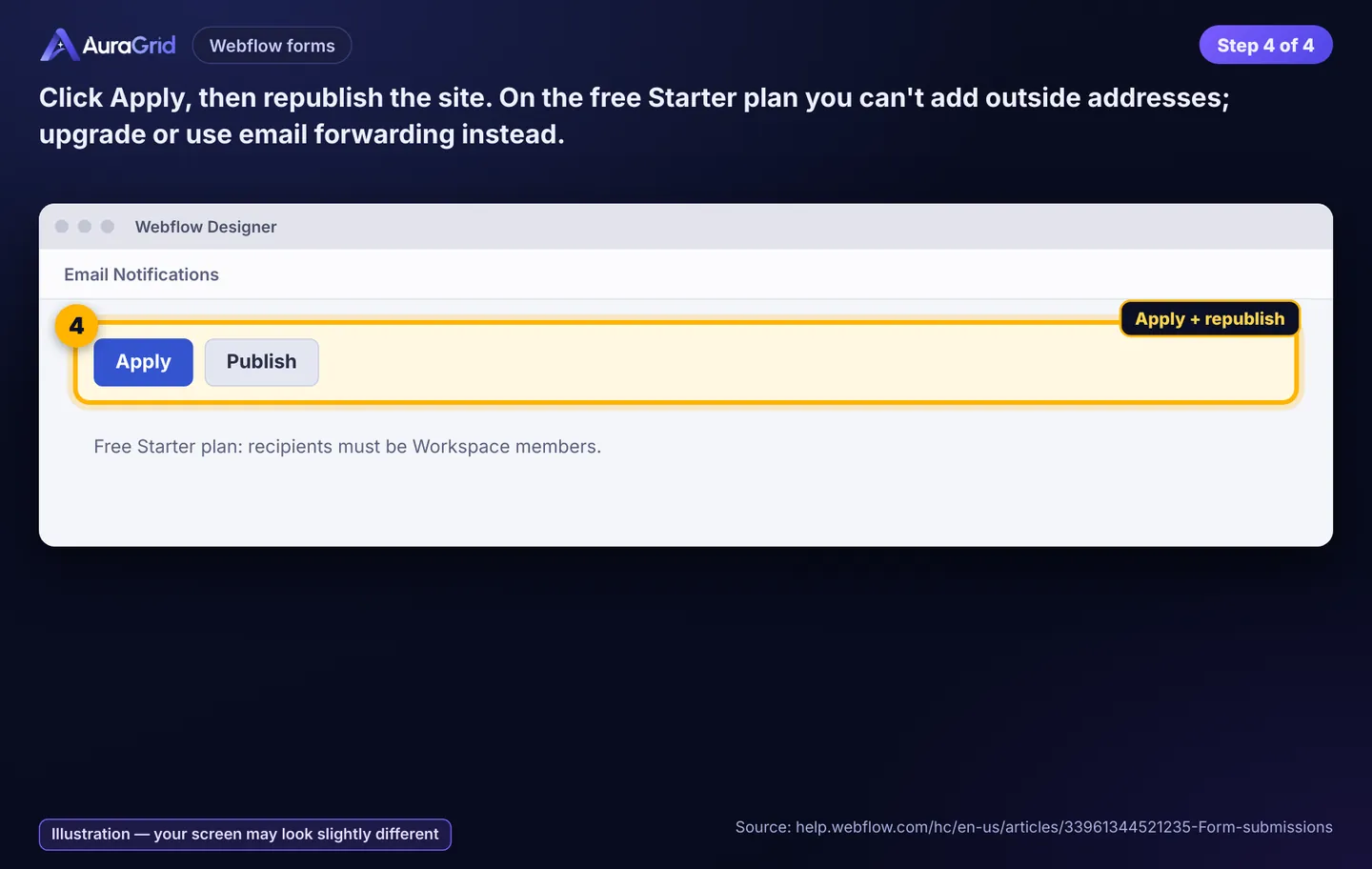
Apply, republish. Free Starter plan: only Workspace members can receive; upgrade or forward from your email instead.
Illustration, your screen may look slightly differentIllustration, your screen may look slightly differentIllustration, your screen may look slightly differentIllustration, your screen may look slightly different
2I. Any other form tool
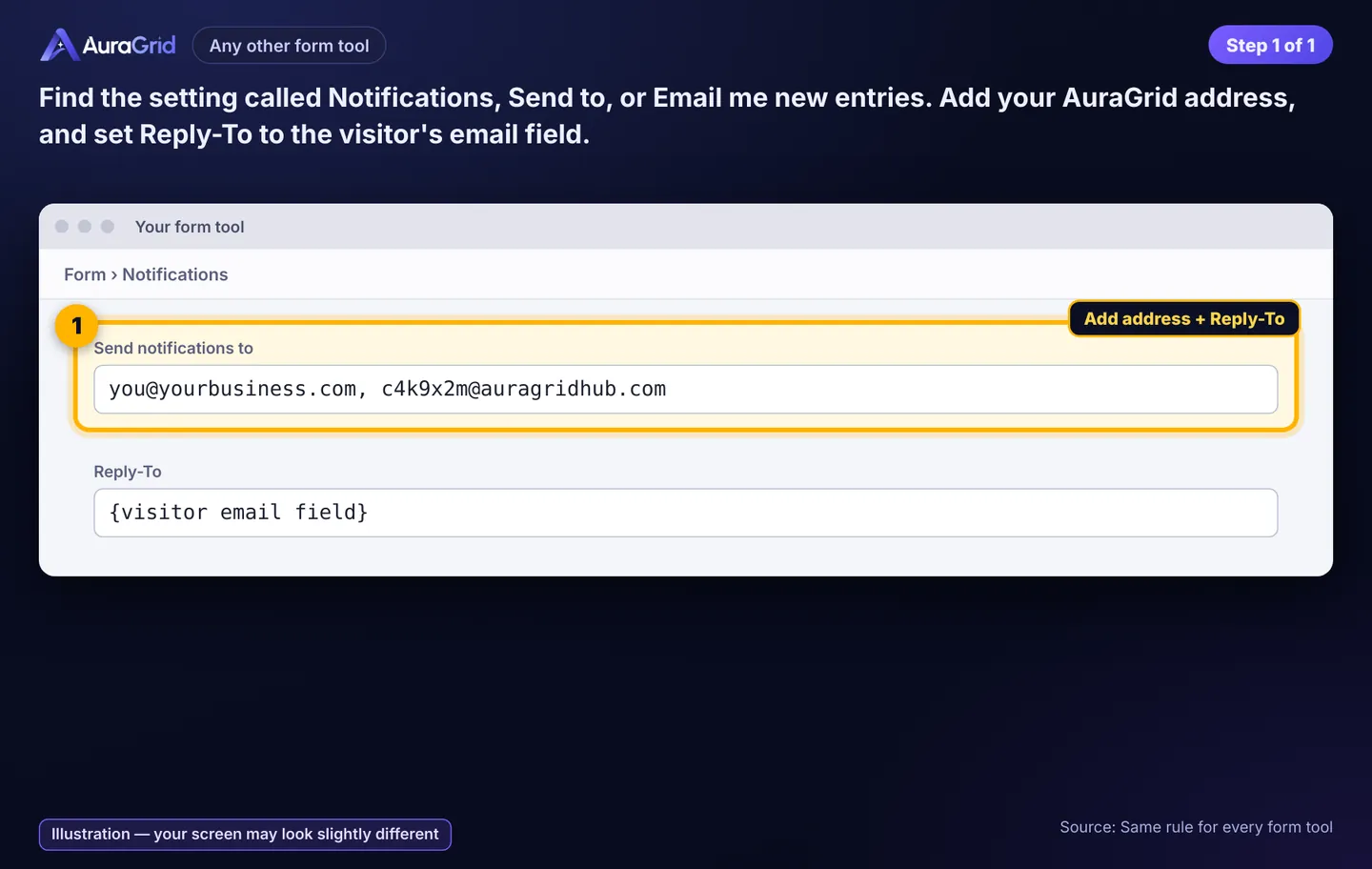
Find Notifications / Send to / Email me new entries. Add your AuraGrid address and set Reply-To to the visitor's email field.
Illustration, your screen may look slightly different
2J. Coming soon
Website chat widget; Google Business Profile (Google ended Business Profile chat on July 31, 2024; calls still come to your phone); Yelp, Thumbtack, Angi (their emails come from the platform, so please reply inside the platform for now); Facebook Page, Lead Ads, Instagram; WhatsApp and SMS. We'll email you when each one opens.
Troubleshooting
Forwarded email isn't arriving: check the Forwarding address has no spaces; Gmail: is "Forward a copy…" selected and saved? Outlook: is the rule on, and did you choose Redirect to? cPanel: run Trace. Microsoft 365 bounce 5.7.520 = your admin blocks external forwarding.
Gmail verification: the link goes to your AuraGrid address, not your inbox. Open Dashboard › Channels to find it. Links expire; if it's old, remove the address in Gmail and add it again.
Spam folder: form tools sometimes mark their own notifications as spam. Add the form sender (e.g. form-submission@squarespace.info, no-reply-forms@webflow.com) to safe senders. Tell customers to check spam for our first reply and mark it "not spam".
Test send: "Send me a test" goes only to your login email; wait a minute between tests. "Send test message" on Channels creates a sample lead in your inbox.
Reply went to the wrong person: set Reply-To to the visitor's email in your form (2D–2I).
Wrong language: change the reply text in Reply; save.
Still stuck? Email support@auragridlabs.com (we reply within 1 business day) or buy Done-for-You Setup ($99, non-refundable) and we connect it for you.